If you’re stuck with a frozen screen, don’t panic. Knowing how to wake up the system from sleep mode can save time and prevent frustration. Sleep mode helps your computer save power, but sometimes your laptop or PC won’t wake up properly. Let’s fix that step by step. Quick Ways to Wake Up Your Computer Start with the basics. These methods work for most systems. 1. Press a Key on the Keyboard Tap the spacebar, Enter, or any key This is the most common way to wake up a computer If your keyboard is enabled, your system should wake instantly. 2. Move or Click the Mouse Move your mouse slightly Click the left or right button This works if “wake using mouse” is enabled in settings. 3. Press the Power Button Once Tap (don’t hold) the power button This safely...
If you’re stuck with a frozen screen, don’t panic. Knowing how to wake up the system from sleep mode can save time and prevent frustration. Sleep mode helps your computer save power, but sometimes your laptop or PC won’t wake up properly. Let’s fix that step by step.
Quick Ways to Wake Up Your Computer
Start with the basics. These methods work for most systems.
1. Press a Key on the Keyboard
- Tap the spacebar, Enter, or any key
- This is the most common way to wake up a computer
If your keyboard is enabled, your system should wake instantly.
2. Move or Click the Mouse
- Move your mouse slightly
- Click the left or right button
This works if “wake using mouse” is enabled in settings.
3. Press the Power Button Once
- Tap (don’t hold) the power button
This safely wakes your PC without shutting it down.
How to Wake Up a Laptop or PC Using the Keyboard or Mouse
Sometimes your system doesn’t respond. You may need to enable wake permissions.
Enable Keyboard Wake-Up
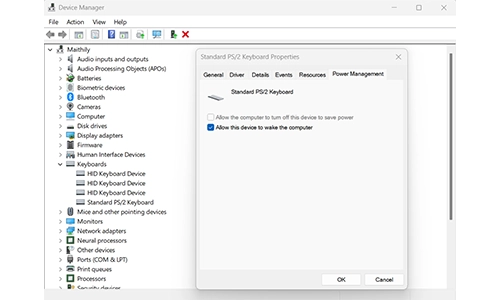
- Open Device Manager
- Expand Keyboards
- Right-click your keyboard → Properties
- Go to Power Management
- Check: Allow this device to wake the computer
Enable Mouse Wake-Up
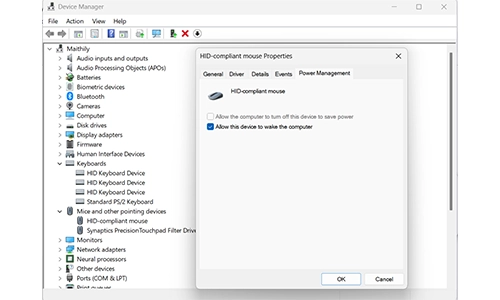
- Open Device Manager
- Expand Mice and other pointing devices
- Right-click your mouse → Properties
- Go to Power Management
- Enable: Allow this device to wake the computer
Windows 11 Computer Won’t Wake Up From Sleep? Fix It
If your Windows 11 computer won’t wake up from sleep, try these fixes.
1. Update Drivers
Outdated drivers can block wake functions.
- Open Device Manager
- Update keyboard, mouse, and display drivers
2. Disable Fast Startup
Fast startup can interfere with sleep mode.
- Go to Control Panel → Power Options
- Click Choose what the power buttons do
- Turn off Fast Startup
3. Change Power Settings
- Open Power & Sleep settings
- Adjust sleep timers
- Set balanced or high-performance mode
4. Run Power Troubleshooter
- Go to Settings → System → Troubleshoot
- Run the Power troubleshooter
What to Do If Your PC Still Won’t Wake Up

If nothing works:
- Disconnect external devices
- Try a different keyboard or mouse
- Check for BIOS/firmware updates
- Force restart (last option)
If this happens often, it may be a hardware issue.
Pro Tips to Avoid Sleep Mode Issues
FAQs
How do I wake up my computer from sleep mode?
Press any key, move the mouse, or tap the power button once to wake your computer from sleep mode.
Why won’t my Windows 11 computer wake up from sleep?
Outdated drivers, disabled wake settings, or power configuration issues can prevent your Windows 11 PC from waking up.
Can I wake up my laptop using the keyboard?
Yes, enable “Allow this device to wake the computer” in Device Manager for your keyboard.
How do I wake up my PC using the mouse?
Enable mouse wake settings in Device Manager under Power Management.
What if my computer is stuck in sleep mode?
Try pressing the power button once. If it fails, perform a force restart as a last resort.
Stay tuned for more insightful content, and be sure to subscribe so you never miss our latest updates.




The Mokacam 4K Sports and Action Camera: Tiny but Powerful
How to Choose the Best Document Scanner for Your Needs
Micromax 50 Inch LED TV: Should You Still Buy It?
What Percentage of Homes Have Smart Devices?