We rely on our laptops every day — for work, school, entertainment, and everything in between. So it’s natural to wonder: Is it bad to keep laptops plugged in all the time? Many users leave their laptops continuously charging, but is that helping the battery or hurting it? The short answer: It depends on your laptop, usage, and battery technology. Let’s break it down in a simple, tech-friendly way. Understanding How Laptop Batteries Work Modern laptops use lithium-ion or lithium-polymer batteries. These batteries don’t like extreme heat or staying at 100% charge for long periods. That’s why manufacturers include smart charging systems. Most modern laptops from brands like Apple, Dell, HP, Asus, and Lenovo are designed to stop charging once the battery reaches full. So technically, the laptop doesn’t “overcharge.” However, keeping it plugged in constantly can still impact battery...
We rely on our laptops every day — for work, school, entertainment, and everything in between. So it’s natural to wonder: Is it bad to keep laptops plugged in all the time? Many users leave their laptops continuously charging, but is that helping the battery or hurting it?
The short answer: It depends on your laptop, usage, and battery technology. Let’s break it down in a simple, tech-friendly way.
Understanding How Laptop Batteries Work
Modern laptops use lithium-ion or lithium-polymer batteries. These batteries don’t like extreme heat or staying at 100% charge for long periods. That’s why manufacturers include smart charging systems.
Most modern laptops from brands like Apple, Dell, HP, Asus, and Lenovo are designed to stop charging once the battery reaches full. So technically, the laptop doesn’t “overcharge.” However, keeping it plugged in constantly can still impact battery health in other ways.
When Keeping Your Laptop Plugged In Is OK

It’s generally safe to keep your laptop connected when:
- You're doing heavy work (video editing, gaming, rendering)
- You need maximum performance and don’t want battery mode slowing things down
- Your laptop has a built-in battery health management system
Many newer models automatically stop charging at around 80% or use “adaptive charging,” which slows down battery wear.
When It Can Be Bad for Your Battery
Keeping the laptop plugged in 24/7 can reduce long-term battery health, especially if:
- Your laptop gets hot while plugged in
- You often place it on beds, cushions, or surfaces with poor airflow
- Your model doesn’t have smart charging features
- You always keep the battery at 100%
Heat is the biggest enemy. High temperatures cause battery aging faster than frequent charging.
Tips to Protect Your Laptop Battery

1. Use Battery Health Modes
Check if your laptop has:
- Apple “Battery Health Optimization”
- Windows “Smart Charging” or “Battery Saver”
- Lenovo Vantage
- Dell Power Manager
These keep the battery around 70–80% for longer life.
2. Avoid Heat Build-Up
Use a cooling pad or ensure good airflow. Heat ages batteries faster than anything else.
3. Don’t Always Charge to 100%
If you are mostly working at your desk, aim for a 70–90% charge instead.
4. Unplug During Light Tasks
Browsing, writing, or watching videos don’t require constant wall power.
5. Do a Full Charge Cycle Occasionally
Charge to 100% and drain to around 20% once a month. It helps calibrate battery readings.
FAQ
Does keeping the laptop plugged in damage the battery?
Not instantly, but long-term heat and staying at 100% can reduce battery lifespan.
Should I unplug my laptop at night?
Yes, if your model lacks smart charging or tends to heat up while charging.
Is it okay to use a laptop while charging?
Yes, it’s completely safe and doesn’t harm the battery.
What percentage should I keep my laptop battery at?
For best health, keep it between 40% and 80% during regular use.
How often should I fully charge my laptop?
Do a full cycle once a month to help maintain accurate battery readings.


Solana’s Worth in Future: What Could 1 SOL Be Worth?
How to Wake Up the System From Sleep Mode on Any Computer
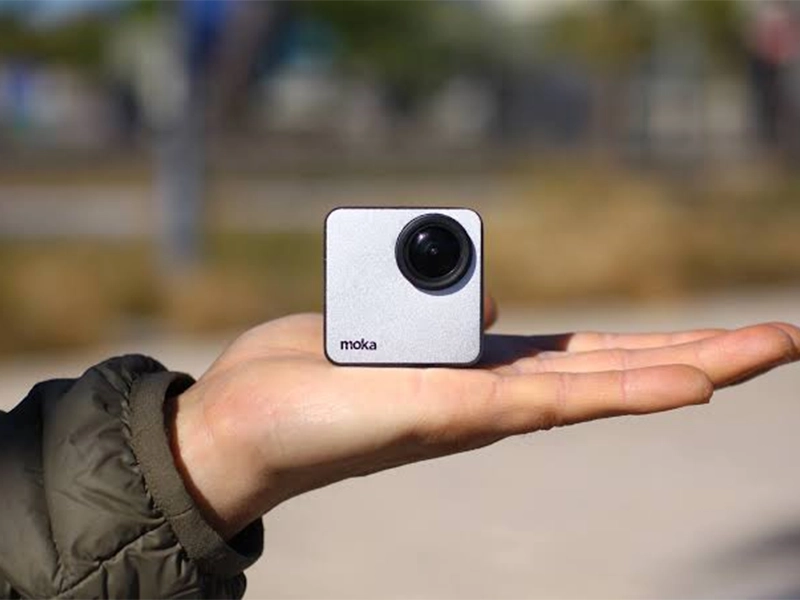
The Mokacam 4K Sports and Action Camera: Tiny but Powerful
How to Choose the Best Document Scanner for Your Needs