There’s something oddly frustrating about a device that barely does anything… yet eats battery like it’s running a gaming rig. If your keyboard battery is draining faster than expected, the culprit is often not hardware, but settings quietly working in the background. Whether it’s a wireless keyboard, laptop backlit keyboard, or even your phone’s virtual keyboard, small tweaks can make a big difference. The Hidden Culprit: Background Activity Most people assume keyboards are passive. They’re not. Modern keyboards, especially smart ones like predictive or AI-powered keyboards, constantly run background processes like: Learning your typing habits Syncing data across devices Running animations, emojis, and suggestions Some keyboard apps can even show high battery usage simply because they remain active in the background. In certain cases, updates have even caused keyboard apps to drain battery due to added features running silently. The...
There’s something oddly frustrating about a device that barely does anything… yet eats battery like it’s running a gaming rig. If your keyboard battery is draining faster than expected, the culprit is often not hardware, but settings quietly working in the background.
Whether it’s a wireless keyboard, laptop backlit keyboard, or even your phone’s virtual keyboard, small tweaks can make a big difference.
The Hidden Culprit: Background Activity
Most people assume keyboards are passive. They’re not.
Modern keyboards, especially smart ones like predictive or AI-powered keyboards, constantly run background processes like:
- Learning your typing habits
- Syncing data across devices
- Running animations, emojis, and suggestions
Some keyboard apps can even show high battery usage simply because they remain active in the background.
In certain cases, updates have even caused keyboard apps to drain battery due to added features running silently.
The Setting That Drains Your Keyboard Battery

One of the biggest overlooked reasons for keyboard battery drain is background app refresh or always-on permissions.
If your keyboard app is allowed to:
- Run continuously in the background
- Sync data frequently
- Access network services
…it will consume more power than necessary.
Disabling or restricting background activity can significantly reduce battery usage.
Laptop Users: Check Your Keyboard Backlight
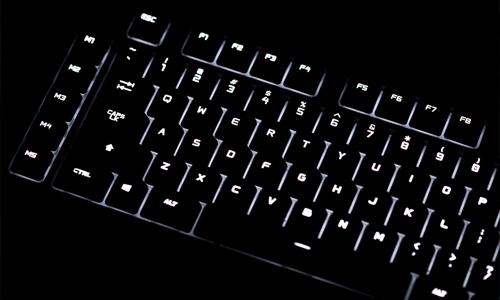
If you’re using a laptop, your keyboard might literally be glowing away your battery.
Backlit keyboards consume power constantly, especially at higher brightness levels. Turning off or reducing backlight intensity can instantly improve battery life.
Wireless Keyboards: The Silent Drainers
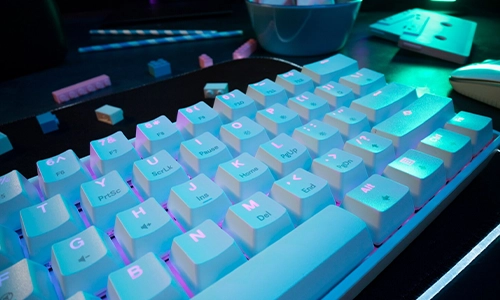
For Bluetooth or wireless keyboards, battery drain often comes from:
- Constant Bluetooth connectivity
- Not entering sleep mode properly
- Staying active even when the device is idle
Some systems keep Bluetooth active even in sleep mode, which can keep your keyboard “awake” and draining battery.
Simple Fixes That Actually Work
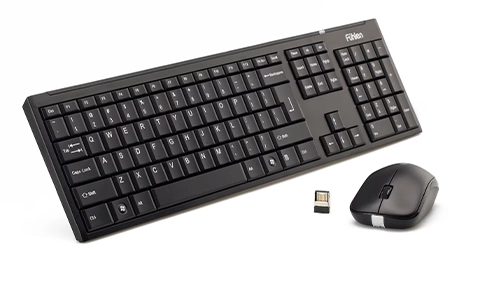
If your keyboard battery is draining fast, try these:
- Disable background activity for keyboard apps
- Turn off unnecessary features like animations or multiple languages
- Reduce or disable keyboard backlight
- Disconnect Bluetooth when not in use
- Update your keyboard app or firmware
Even small changes can noticeably improve battery life.
Your keyboard shouldn’t feel like a power-hungry component. If your keyboard battery is draining quickly, it’s usually a sign that something is running when it shouldn’t be. Tweak a few settings, cut unnecessary background activity, and you’ll likely see your battery life stretch much further. Sometimes, the fix isn’t replacing your device. It’s simply teaching it when to rest.





Can a Smart Home Work Without Internet? Explained
Solana’s Worth in Future: What Could 1 SOL Be Worth?
How to Wake Up the System From Sleep Mode on Any Computer
The Mokacam 4K Sports and Action Camera: Tiny but Powerful