If your keyboard suddenly starts typing the wrong characters, lagging, or just stops responding, the quickest fix is often to reset the keyboard. Whether you’re using a laptop keyboard, an external USB keyboard, or even a Bluetooth one, a reset can fix most common glitches. Here’s a complete guide to help you troubleshoot and reset your keyboard across different devices. 1. Reset Keyboard on Windows If your keyboard acts up on Windows (typing wrong letters, shortcuts not working, etc.), follow these steps: Method 1: Reset Keyboard Layout Press Windows + I to open Settings. Go to Time & Language > Language & Region. Check your keyboard layout – make sure it’s set to US QWERTY (or your preferred one). If it’s wrong, add the correct layout and remove the incorrect one. Method 2: Reset Keyboard Drivers Right-click the Start Menu...
If your keyboard suddenly starts typing the wrong characters, lagging, or just stops responding, the quickest fix is often to reset the keyboard. Whether you’re using a laptop keyboard, an external USB keyboard, or even a Bluetooth one, a reset can fix most common glitches.
Here’s a complete guide to help you troubleshoot and reset your keyboard across different devices.
1. Reset Keyboard on Windows
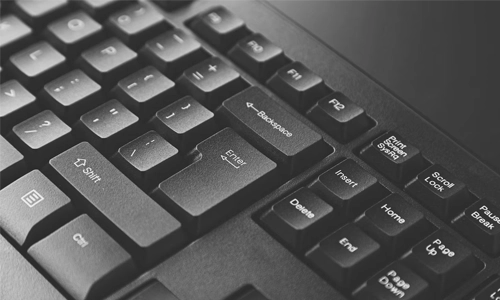
If your keyboard acts up on Windows (typing wrong letters, shortcuts not working, etc.), follow these steps:
Method 1: Reset Keyboard Layout
- Press Windows + I to open Settings.
- Go to Time & Language > Language & Region.
- Check your keyboard layout – make sure it’s set to US QWERTY (or your preferred one).
- If it’s wrong, add the correct layout and remove the incorrect one.
Method 2: Reset Keyboard Drivers
- Right-click the Start Menu and select Device Manager.
- Expand Keyboards.
- Right-click your keyboard and select Uninstall device.
- Restart your computer – Windows will reinstall the driver automatically.
2. Reset Keyboard on Mac
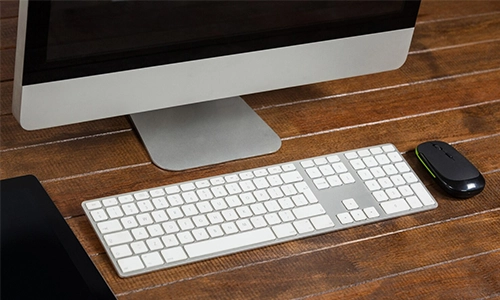
Mac keyboards sometimes freeze or misbehave after updates. Here’s how to reset them:
- Go to System Settings > Keyboard.
- Restore defaults by adjusting key repeat, shortcuts, and modifiers.
Method 2: Reset SMC and PRAM (MacBooks)
- Shut down your Mac.
- Hold Shift + Control + Option + Power for 10 seconds, then release.
- Turn your Mac back on.
- For PRAM reset: restart and hold Option + Command + P + R until you hear the startup chime twice.
3. Reset an External or Bluetooth Keyboard
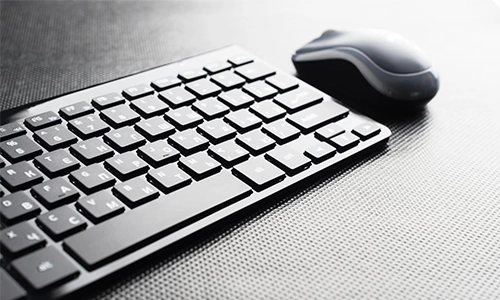
If you’re using an external keyboard (USB or Bluetooth):
For Bluetooth
Remove the keyboard from Bluetooth settings.
- Restart your computer.
- Pair it again.
For USB Keyboards
- Unplug and replug it into a different USB port.
- If it doesn’t work, uninstall and reinstall the drivers via Device Manager (Windows) or System Preferences (Mac).
4. Quick Fixes for Common Keyboard Issues
- Sticky keys or delayed typing → Turn off Sticky Keys (Windows: Settings > Accessibility > Keyboard, Mac: System Settings > Accessibility).
- Keyboard shortcuts not working → Reset shortcuts to default in system settings.
- Completely unresponsive → Try an external keyboard to rule out hardware failure.
When Resetting Doesn’t Work
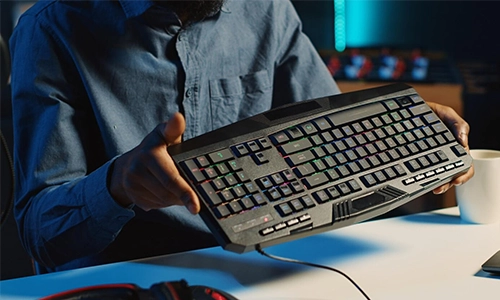
If resetting the keyboard doesn’t solve the issue, you may be dealing with:
- Physical hardware damage (spilled liquid, worn-out keys).
- A faulty cable or connection (USB keyboards).
- Battery issues (wireless keyboards).
In these cases, replacing the keyboard may be the only option.
Knowing how to reset keyboard settings is a quick way to resolve most typing glitches without incurring the cost of repairs. Always try software resets first before assuming your keyboard is broken.



Can a Smart Home Work Without Internet? Explained
Solana’s Worth in Future: What Could 1 SOL Be Worth?
How to Wake Up the System From Sleep Mode on Any Computer
The Mokacam 4K Sports and Action Camera: Tiny but Powerful