I was sitting in my room working on a blog when my son rushed in with his laptop. The screen showed an HP BIOS update, already at 61%. He looked confused. “It just asked me to restart… I thought it was a normal update.” Before I could answer, the screen went black. Then a blue screen appeared with something like firmware update in progress. The fan got louder. He froze. “Did I break it?” That moment right there is exactly why this topic matters. A BIOS update looks like a regular update, but it’s not. And if you don’t understand what’s happening, it can feel scary. What Are BIOS Updates? Your computer has something called the BIOS (Basic Input/Output System). Think of it as the first thing that wakes up when you turn on your PC. Before Windows loads, before...
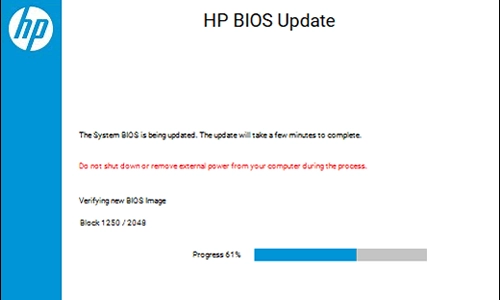
I was sitting in my room working on a blog when my son rushed in with his laptop. The screen showed an HP BIOS update, already at 61%.
He looked confused. “It just asked me to restart… I thought it was a normal update.”
Before I could answer, the screen went black. Then a blue screen appeared with something like firmware update in progress. The fan got louder. He froze.
“Did I break it?”
That moment right there is exactly why this topic matters. A BIOS update looks like a regular update, but it’s not. And if you don’t understand what’s happening, it can feel scary.
What Are BIOS Updates?
Your computer has something called the BIOS (Basic Input/Output System). Think of it as the first thing that wakes up when you turn on your PC.
Before Windows loads, before you see your apps—the BIOS checks your hardware:
- Is the processor working?
- Is the memory okay?
- Can the system boot properly?
A BIOS update is not like updating an app or even Windows. It updates the core firmware of your motherboard—the system that controls how your hardware talks to everything else.
That’s why it feels different. Because it is different.
What Happened in That HP BIOS Update?
Back to my son’s laptop.
What he triggered was an automatic firmware update. Brands like HP, Lenovo, and Dell sometimes push BIOS updates through system updates.
When it restarted:
- The normal operating system paused
- The BIOS took control
- The system updated itself at a deeper level
That black screen? Normal.
That loud fan? Also normal.
But here’s the important part: You should never interrupt a BIOS update.
No shutdown. No force restart. No panic clicks.
Because if it stops halfway, the system may not boot again.
Is BIOS Update Safe? [The Most Honest Answer You’ll Ever Find]
Let’s not sugarcoat it.
A BIOS update is safe when done correctly—but it’s not risk-free.
Safe When:
- You follow official instructions
- Your device has enough battery or power
- The update is meant for your exact model
Risky When:
- You force shut down during the update
- You install the wrong BIOS version
- There’s a sudden power failure
Unlike regular updates, a failed BIOS update can make your system unusable.
That’s why people ask: “Should I flash my BIOS?” And the answer is not always yes.
Is It Important to Update BIOS? Or Can You Ignore It?
Here’s where most people get it wrong.
You do NOT need to update your BIOS regularly like Windows.
In fact, you should only consider updating your system BIOS if:
If your computer works perfectly fine…
You can leave it alone.
Why Do Companies Release BIOS Updates Then?
- Fix bugs or system crashes
- Improve hardware compatibility
- Patch security vulnerabilities
- Support new processors or features
How to Update BIOS (Without Messing It Up)
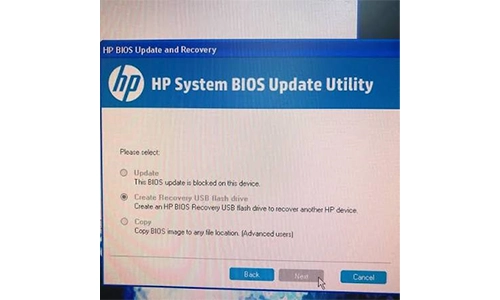
If you ever decide to update your motherboard BIOS, keep it simple and safe.
Step 1: Check Your System Model
Know your exact laptop or motherboard version.
Step 2: Download BIOS Updates from Official Site
Always go to:
- HP Support
- Lenovo Support
- Dell Support
Never use random third-party downloads.
Step 3: Follow Instructions Carefully
Each brand has its own process.
For example:
- HP BIOS updates often run automatically
- Lenovo BIOS updates may come through system update tools
Step 4: Keep Power Connected
This is non-negotiable.
No battery-only updates.
Step 5: Let It Finish (No Interruptions)
Even if it looks stuck—wait.
BIOS Update on Windows 11: What’s Different?
If you’re using Windows 11, you might see BIOS updates through:
- Windows Update
- Manufacturer apps
It may look like a normal update—but it’s still firmware underneath.
Always read what you’re installing.
Should You Install Lenovo BIOS Update or Any Brand Update?
Install it if:
- You are facing issues
- The update fixes something relevant
- It improves system stability
Skip it if:
- Your system works fine
- You don’t understand the update
- There’s no clear benefit
You don’t get extra speed just by updating BIOS.
FAQs
What is a BIOS update?
A BIOS update upgrades your computer’s firmware that controls hardware before the operating system starts.
Is BIOS update safe?
Yes, if done correctly using official tools and without interruption.
Should I update BIOS regularly?
No, only update when necessary or recommended.
How do I download BIOS updates?
Download them from your device manufacturer’s official website only.
Can BIOS update damage my computer?
Yes, if interrupted or done incorrectly, it can prevent your system from booting.
So… Did My Son’s Laptop Survive?
Yes. It completed the update and restarted normally.
But that moment of panic? Completely real.
Because no one explains this properly.
A BIOS update is not a casual update. It’s deeper, more sensitive, and more powerful. You don’t need to fear it. Only update the BIOS when there is a clear reason. Not just because it’s available.



How Much Water Can Water-Resistant Phones Handle?
Bitcoin Halving: A Deep Dive into the Scheduled Supply Shock of Bitcoin
Why Are Vertu Phones So Expensive?
Can a Smart Home Work Without Internet? Explained