If Print Screen is not working, try using Windows + Shift + S to open the Snipping Tool. If that works, check your keyboard settings, clipboard history, screenshot permissions, and background applications that may be overriding the Print Screen key. Most screenshot issues can be fixed by enabling Print Screen shortcuts, updating keyboard drivers, or restarting Windows. Whether it’s a PrtScr not working problem or a full Windows screenshot not working situation, there are simple ways to get it back. Why Is Print Screen Not Working? Before jumping into fixes, here’s what might be causing the issue: Screenshot shortcuts disabled Keyboard not responding properly Background apps interfering Clipboard issues Screenshot security policy restrictions (especially on work devices) Why Print Screen May Not Work on Some Laptops Many laptop manufacturers combine multiple functions into the same key. On some devices, the...
If Print Screen is not working, try using Windows + Shift + S to open the Snipping Tool. If that works, check your keyboard settings, clipboard history, screenshot permissions, and background applications that may be overriding the Print Screen key. Most screenshot issues can be fixed by enabling Print Screen shortcuts, updating keyboard drivers, or restarting Windows.
Whether it’s a PrtScr not working problem or a full Windows screenshot not working situation, there are simple ways to get it back.
Why Is Print Screen Not Working?
Before jumping into fixes, here’s what might be causing the issue:
- Screenshot shortcuts disabled
- Keyboard not responding properly
- Background apps interfering
- Clipboard issues
- Screenshot security policy restrictions (especially on work devices)
Why Print Screen May Not Work on Some Laptops
Many laptop manufacturers combine multiple functions into the same key. On some devices, the Print Screen key only works when used together with the Fn (Function) key.
Try these combinations:
- Fn + PrtScn
- Fn + Windows + PrtScn
- Fn + Shift + PrtScn
Brands like HP, Dell, Lenovo, ASUS, and Acer often use different keyboard layouts, so checking your laptop's keyboard markings can help identify the correct shortcut.
Quick Fixes You Should Try First
Let’s start with the easiest ones.
1. Use the Snipping Shortcut Instead
Press:
Why this works:
Even if your Print Screen key fails, this built-in tool captures screenshots reliably.
2. Check If Print Screen Is Enabled
Go to:
Settings → Accessibility → Keyboard
Turn ON:
- Use the Print Screen button to open screen snipping
3. Restart Your Computer
Sounds basic, but it often fixes:
- Temporary bugs
- Frozen keyboard input
- Background conflicts
Fixing “PrtScr Not Working” on Windows
If your prtscr not working issue persists, try these:
4. Check Your Clipboard
Press:
If nothing shows, clipboard history might be off.
Enable it in:
Settings → System → Clipboard
5. Look for Conflicting Apps
Apps like:
- OneDrive
- Dropbox
- Third-party screenshot tools
These can override screenshot behavior.
Fix:
Close them temporarily and try again.
6. Update Keyboard Drivers
- Open Device Manager
- Find Keyboards
- Update driver
Outdated drivers can cause key functions to fail.
7. Use Alternative Shortcuts
- Windows + PrtScn → Saves screenshot automatically
- Alt + PrtScn → Captures active window
8. Check File Save Location
Screenshots are usually saved in:
Pictures → Screenshots
If nothing is there, the function may not be triggering.
Screenshot Security Policy Issues
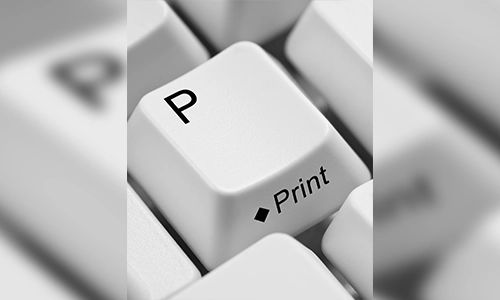
If you’re using a work laptop, this is important.
9. Check for Screenshot Restrictions
Some organizations apply a screenshot security policy that blocks screen capture.
You may notice:
- Screenshot keys not responding
- Blank or black screenshots
Fix:
- Contact your IT admin
- Use approved tools (if allowed)
Hardware Issues You Shouldn’t Ignore
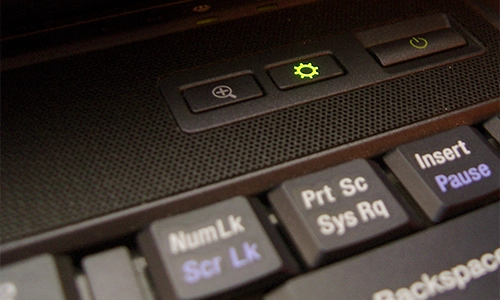
Sometimes, it’s not software.
10. Test Your Keyboard
- Try an external keyboard
- Use an online key tester
If Print Screen doesn’t respond, the key may be damaged.
When Nothing Works
If all else fails:
- Run Windows Troubleshooter
- Reset keyboard settings
- Consider system updates
FAQs
1. Why is my print screen not working on Windows?
It could be due to disabled settings, clipboard issues, or background apps interfering with screenshot functions.
2. What to do if prtscr not working?
Use Windows + Shift + S, enable screenshot settings, and check for app conflicts.
3. Why is my Windows screenshot not working?
This may happen due to outdated drivers, disabled shortcuts, or system glitches.
4. Can security settings block screenshots?
Yes, a screenshot security policy can prevent screen capture, especially on office devices.
5. Where do screenshots go in Windows?
They are saved in the Pictures → Screenshots folder when using Windows + PrtScn.
6. Does Print Screen copy to clipboard?
Yes, pressing PrtScn copies the screenshot to your clipboard unless settings are changed.
7. How do I fix screenshot issues quickly?
Restart your system, use Windows + Shift + S, and check settings—these fix most problems.
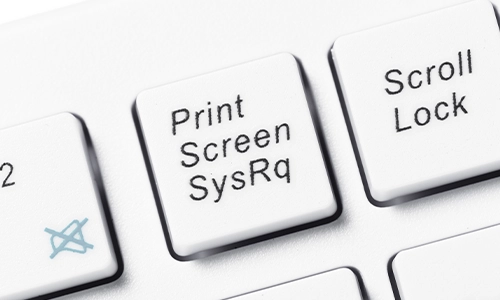
Dealing with print screen issues can be frustrating, especially when you need a quick screenshot. But in most cases, it’s a simple fix—either a setting, a shortcut, or a small system glitch.
Once you know these tricks, you’ll never feel stuck again.
Want more simple fixes for everyday tech problems? Stick with Technogala—we keep things practical, not complicated.
If you're constantly working with multiple browser tabs, you might also like our guide on How to Go to Previous Tab in Chrome, which shows simple keyboard shortcuts that can make browsing much faster and more productive.

How Entrepreneurs Make Use of Technology to Boost Cashflow
How to Go to Previous Tab in Chrome (Easy Shortcut)
How to Check Hard Drive Health and Prevent Data Loss
Where to Place Soundbar and Subwoofer for Best Sound