Your hard drive stores all your important files, apps, and system data. But hard drives can fail over time, and early detection is key. Here’s how to check hard drive health so you can prevent data loss and keep your system running smoothly. 1. Check Hard Drive Health Using Built-In Tools For Windows CHKDSK: Open Command Prompt and type chkdsk C: to scan for errors. Windows SMART Status: Open Command Prompt and type wmic diskdrive get status. “OK” means your drive is healthy. For Mac Use Disk Utility: Go to Applications > Utilities > Disk Utility. Select your drive and click First Aid to check for errors. Use Third-Party Hard Drive Health Tools Several apps provide detailed insights about your drive’s performance: CrystalDiskInfo (Windows): Monitors SMART data and alerts for potential issues. DriveDx (Mac): Comprehensive SMART monitoring and predictive failure...
Your hard drive stores all your important files, apps, and system data. But hard drives can fail over time, and early detection is key. Here’s how to check hard drive health so you can prevent data loss and keep your system running smoothly.
1. Check Hard Drive Health Using Built-In Tools
For Windows
- CHKDSK: Open Command Prompt and type chkdsk C: to scan for errors.
- Windows SMART Status: Open Command Prompt and type wmic diskdrive get status. “OK” means your drive is healthy.
For Mac
- Use Disk Utility: Go to Applications > Utilities > Disk Utility. Select your drive and click First Aid to check for errors.
Use Third-Party Hard Drive Health Tools
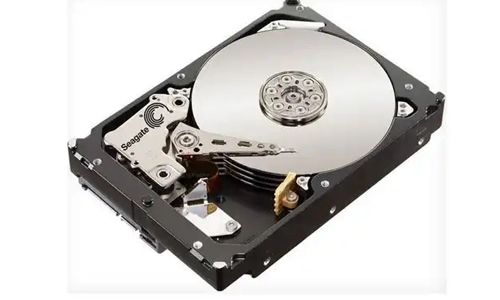
Several apps provide detailed insights about your drive’s performance:
- CrystalDiskInfo (Windows): Monitors SMART data and alerts for potential issues.
- DriveDx (Mac): Comprehensive SMART monitoring and predictive failure analysis.
- HD Sentinel: Offers both Windows and Mac versions, great for monitoring health over time.
Monitor for Warning Signs
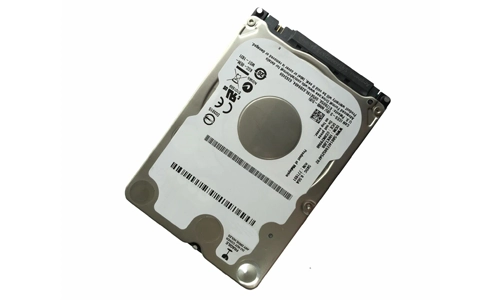
Watch out for these early warning signs of a failing hard drive:
- Strange noises like clicking or grinding
- Slow file access or frequent crashes
- Corrupted files or missing data
- System failing to boot
Preventive Measures to Protect Your Hard Drive
- Regular backups: Use cloud storage or an external drive.
- Avoid physical shocks: Don’t drop or move your device while running.
- Keep software updated: Firmware and OS updates often include fixes for drive errors.
- Defragment HDDs (not SSDs): Windows defrag can help maintain mechanical drives.
When to Replace Your Hard Drive
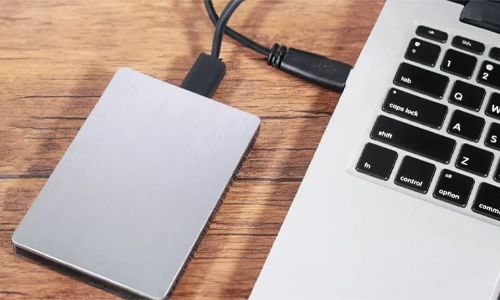
Even with preventive care, hard drives have a lifespan. Consider replacement if:
- SMART monitoring consistently shows errors
- You experience multiple unexplained crashes
- Your drive is older than 5–7 years (HDD) or 3–5 years (SSD)
FAQs
How often should I check hard drive health?
Monthly checks are ideal, especially for older drives or drives with critical data.
Can a hard drive fail without warning?
Yes. While monitoring tools help, sudden failures can happen, making backups essential.
Is checking hard drive health the same for SSDs and HDDs?
Mostly yes, but SSDs don’t need defragmentation and have different wear-level indicators.
Can software fix a failing hard drive?
Software can fix minor errors, but failing drives usually need replacement.


Why Are Vertu Phones So Expensive?
Can a Smart Home Work Without Internet? Explained
Solana’s Worth in Future: What Could 1 SOL Be Worth?
How to Wake Up the System From Sleep Mode on Any Computer