Have you ever struggled to type a long message while multitasking or walking? Use voice typing, a powerful feature that lets you speak instead of type. Whether you're replying to emails, searching Google, or drafting a message, voice typing is your shortcut to fast and efficient input. This guide covers how to use voice typing on both Android and iPhone, plus helpful tips, best practices, and solutions to common issues. What Is Voice Typing? Voice typing, also known as speech-to-text, converts your spoken words into written text. It works using built-in dictation tools like Google Voice Typing on Android or Dictation on iPhone, powered by AI and voice recognition. It's ideal for: People with mobility issues or temporary injuries Composing messages hands-free Writing on the go Multitasking during daily chores How to Use Voice Typing on Android 1. Enabling Voice...
Have you ever struggled to type a long message while multitasking or walking? Use voice typing, a powerful feature that lets you speak instead of type. Whether you're replying to emails, searching Google, or drafting a message, voice typing is your shortcut to fast and efficient input.
This guide covers how to use voice typing on both Android and iPhone, plus helpful tips, best practices, and solutions to common issues.
What Is Voice Typing?
Voice typing, also known as speech-to-text, converts your spoken words into written text. It works using built-in dictation tools like Google Voice Typing on Android or Dictation on iPhone, powered by AI and voice recognition.
It's ideal for:
- People with mobility issues or temporary injuries
- Composing messages hands-free
- Writing on the go
- Multitasking during daily chores
How to Use Voice Typing on Android
1. Enabling Voice Typing
Most Android phones use Gboard as the default keyboard. Here's how to turn on voice typing:
- Open Settings
- Go to System > Keyboard > On-screen keyboard > Gboard
- Tap on Voice typing and toggle it ON
To start dictating:
- Tap any text field to bring up the keyboard
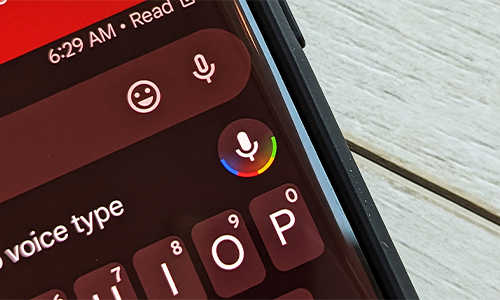
- Tap the mic icon on the upper-right side
- Speak clearly, and your words will appear as text
If you’re using a Samsung phone, voice input is built into the Samsung Keyboard.
Go to Settings > General Management > Samsung Keyboard > Voice input to make sure it’s enabled.
2. Using Voice Commands
- Say “comma”, “period”, or “new paragraph”
- Use “delete” to remove the last word
- Try “thumbs up emoji” or “smiley face emoji” for fun
3. What to Do if There’s No Permission to Enable Voice Typing on Android
If the microphone is disabled:
- Go to Settings > Apps > Gboard > Permissions
- Allow Microphone Access
- Make sure Google app is also updated and has mic permission
How to Use Voice Typing on iPhone
- Turn on Dictation
Voice typing in iPhone is built into the iOS keyboard.
- Go to Settings > General > Keyboard
- Toggle Enable Dictation ON
To start using it:
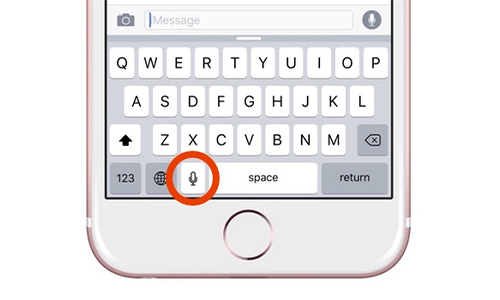
- Tap the mic icon on the bottom right of your iOS keyboard
- Speak naturally, and your voice will convert into text in real time
2. iPhone Voice Typing Commands
- Say “new line” or “new paragraph”
- Use “undo”, “redo”, “select sentence”
- Dictate emojis like “heart emoji” or punctuation like “question mark”
3. How to Turn Off Voice Dictation on iPhone
- Go to Settings > General > Keyboard
- Toggle Enable Dictation OFF
Best Practices for Voice Typing

- Speak clearly and avoid background noise
- Use punctuation commands for better formatting
- Proofread your dictated text before sending
- Use a headset mic for improved accuracy in noisy areas
- Make sure you're connected to the internet unless using offline voice typing
Voice Typing Stats You Should Know
- Voice typing can be up to 3x faster than manual typing (Stanford Study)
- 72% of smartphone users have tried voice assistants, many using it for messaging
- Dictation accuracy now exceeds 95% with tools like Google Voice and Apple Dictation
FAQs on Voice Typing
1: How do I recover voice typing if it's not working on Android?
Check if Gboard is your default keyboard and if mic permissions are enabled.
2: Can I use voice to text on Samsung phones?
Yes, use the Samsung Keyboard and tap the mic icon on the lower left.
3: How do I turn off voice text on iPhone?
Go to Settings > Keyboard > Enable Dictation and toggle it OFF.
4: Is voice typing available offline?
Yes, on Android. Enable offline voice recognition in your Gboard settings.
5: Can I use voice typing to fill forms and search?
Yes. Anywhere a text box appears—whether in Google, WhatsApp, or Notes—you can use voice typing.
Voice typing is no longer a novelty—it’s a productivity booster, accessibility tool, and everyday convenience rolled into one. Whether you’re composing messages, creating content, or searching online, voice input can help you work faster and smarter.
So next time you're too tired to type or in a hurry, just tap the mic and start talking. It's that easy.




Can a Smart Home Work Without Internet? Explained
Solana’s Worth in Future: What Could 1 SOL Be Worth?
How to Wake Up the System From Sleep Mode on Any Computer
The Mokacam 4K Sports and Action Camera: Tiny but Powerful