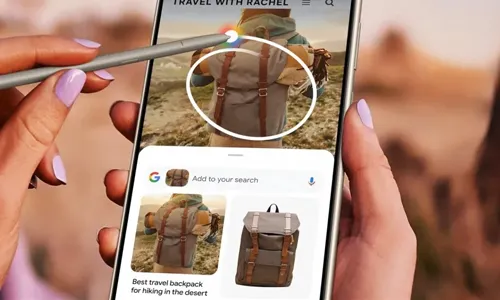
When Google introduced Circle to Search, it felt like the internet suddenly became tactile. Just draw a circle around anything on your screen and instantly learn more. But here’s the catch: the feature is designed primarily for Android. That hasn’t stopped iPhone and iPad users from wanting the same frictionless search magic on Apple devices. The good news? While it’s not native, you can replicate a very similar experience with a few clever methods. What Is Google Circle To Search? Circle to Search is a visual search tool that lets you: Circle, highlight, or tap anything on screen Instantly run a contextual Google search Identify products, text, landmarks, and images It removes the need to switch apps or type queries manually. Can You Use Circle To Search On Apple? Not directly. Apple hasn’t integrated the feature into iOS. However, you...
When Google introduced Circle to Search, it felt like the internet suddenly became tactile. Just draw a circle around anything on your screen and instantly learn more.
But here’s the catch: the feature is designed primarily for Android. That hasn’t stopped iPhone and iPad users from wanting the same frictionless search magic on Apple devices.
The good news? While it’s not native, you can replicate a very similar experience with a few clever methods.
What Is Google Circle To Search?
Circle to Search is a visual search tool that lets you:
- Circle, highlight, or tap anything on screen
- Instantly run a contextual Google search
- Identify products, text, landmarks, and images
It removes the need to switch apps or type queries manually.
Can You Use Circle To Search On Apple?
Not directly. Apple hasn’t integrated the feature into iOS.
However, you can achieve nearly the same workflow using Google Lens and iOS tools. Think of it as recreating the experience rather than installing the exact feature.
Method 1: Use Google App With Google Lens
This is the closest alternative.
- Download the Google app from the App Store
- Open the app and tap the Lens icon in the search bar
- Take a screenshot of what you want to search
- Upload or select the screenshot in Lens
- Highlight or crop the specific area
- View search results instantly
This mimics the “circle” action by letting you select part of an image.
Method 2: Use Screenshot + Visual Lookup
Apple’s built-in Visual Lookup can also help.
- Take a screenshot
- Open it in Photos
- Tap the info (i) icon if Visual Lookup is available
- Explore recognized objects or text
While not as powerful as Google’s search index, it works well for common objects and landmarks.
Method 3: Drag And Drop To Google Search (iPad)
On iPad multitasking:
- Open Safari with Google
- Take a screenshot
- Drag the image into the search bar
- Use image search results
This feels surprisingly close to the Circle to Search flow.
Tips For A Faster Experience
- Keep the Google app in your dock
- Use Back Tap (Accessibility) to trigger screenshots quickly
- Crop screenshots before uploading for more accurate results
These small tweaks make the process feel almost native.
Why Apple Doesn’t Have It Natively

Apple tends to prioritize on-device processing and privacy-first features, while Google leans on its massive search infrastructure.
Circle to Search relies heavily on Google’s ecosystem, so a built-in iOS version would require deeper platform integration that doesn’t currently exist.
Will Circle To Search Ever Come To iPhone?
It’s possible, especially as visual search becomes a core interface trend.
Search is moving away from typing toward gestures, camera input, and context awareness. Whether through partnerships or competing features, iPhone users will likely see more real-time visual search tools evolve.
Using Google Lens, screenshots, and a few shortcuts, iPhone and iPad users can enjoy nearly the same instant discovery workflow. It’s not identical, but it’s close enough to feel like the future quietly sneaking into your pocket.



Solana’s Worth in Future: What Could 1 SOL Be Worth?
How to Wake Up the System From Sleep Mode on Any Computer
The Mokacam 4K Sports and Action Camera: Tiny but Powerful
How to Choose the Best Document Scanner for Your Needs