If you spend most of your day working or browsing on your laptop, you’ll love how easy life becomes when you activate “Okay Google” on Google Chrome. With Google Assistant available directly through your browser, you can search, set reminders, ask questions, play music, and access tools — all without typing a single word. Whether you’re multitasking, working hands-free, or simply prefer voice control, enabling Google Assistant on Chrome transforms your browser into a smart productivity hub. Why Use “Okay Google” on Chrome? Voice commands add a layer of convenience that typing simply can’t match. They help you: Search the web faster Set reminders and timers while working Control smart home devices Open apps or websites hands-free Get instant answers from web Work more efficiently without switching tabs For people who multitask heavily, this feature becomes an everyday essential. How...
If you spend most of your day working or browsing on your laptop, you’ll love how easy life becomes when you activate “Okay Google” on Google Chrome. With Google Assistant available directly through your browser, you can search, set reminders, ask questions, play music, and access tools — all without typing a single word.
Whether you’re multitasking, working hands-free, or simply prefer voice control, enabling Google Assistant on Chrome transforms your browser into a smart productivity hub.
Why Use “Okay Google” on Chrome?
Voice commands add a layer of convenience that typing simply can’t match. They help you:
- Search the web faster
- Set reminders and timers while working
- Control smart home devices
- Open apps or websites hands-free
- Get instant answers from web
- Work more efficiently without switching tabs
For people who multitask heavily, this feature becomes an everyday essential.
How to Set Up Google Assistant on Chrome
1. Open Your Chrome Browser
Make sure you’re signed in with your primary Google account for full Assistant personalization.
2. Visit Google Assistant’s Chrome Settings
Head to: Settings → Search → Voice
Here, you will find the option to enable microphone access and voice activation.
3. Enable “Okay Google” or Voice Search
Toggle on:
▶ “Enable voice search”
If Chrome supports hotword activation on your device, you’ll also see “Enable’”.
4. Allow Microphone Access
Chrome will ask for permission to use your laptop or desktop microphone. Click Allow.
5. Test the Feature
Just say:
“Okay Google, what’s the weather?”
If the setup is successful, the Assistant will respond instantly.
What Can You Do With “Okay Google” on Chrome?
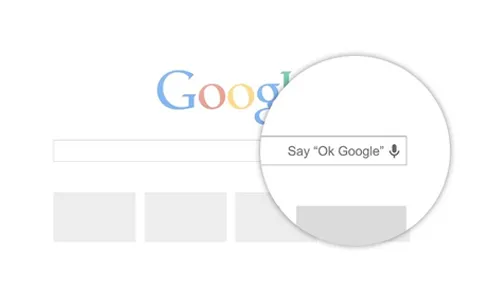
Once activated, Google Assistant can help you:
Hands-Free Browsing
“Okay Google, search for affordable gaming laptops.”
Productivity Tools
“Set a 5-minute timer.”
“Create a note.”
Work & Life Management
“Add a meeting tomorrow at 3 PM.”
Entertainment
“Play jazz music on YouTube.”
Smart Home Control
If you have connected devices:
“Turn off the living room lights.”
This brings the same experience of Google Assistant on your phone right into your Chrome browser.
Tips to Improve Your “Okay Google” Experience
- Use a good-quality microphone or headset.
- Keep Chrome updated to the latest version.
- Sign in with the same account you use on your phone for synced preferences.
- Check if “Hey Google” hotword detection is supported on your device.
FAQs About “Okay Google” on Chrome
1. Does “Okay Google” work on every Chrome browser?
It works on most Chrome versions, but some devices may not support hotword detection.
2. Do I need a Google account to use voice search?
Yes, sign-in helps Google personalize results and sync settings.
3. Can Google Assistant control my smart home from Chrome?
Yes, if your devices are connected to your Google Home app.
4. Does voice activation affect performance?
It uses minimal resources, but keeping Chrome updated ensures smoother performance.
5. Can I use Google Assistant on my laptop?
Yes, through Chrome’s voice search and Assistant integration.
6. Why is it not working on Chrome?
Microphone permissions or disabled voice settings are usually the cause.
7. Is there a Google Assistant app for PC?
There’s no standalone app, but Chrome provides similar voice features.
8. Does it work offline?
Google Assistant requires internet access to respond.



Solana’s Worth in Future: What Could 1 SOL Be Worth?
How to Wake Up the System From Sleep Mode on Any Computer
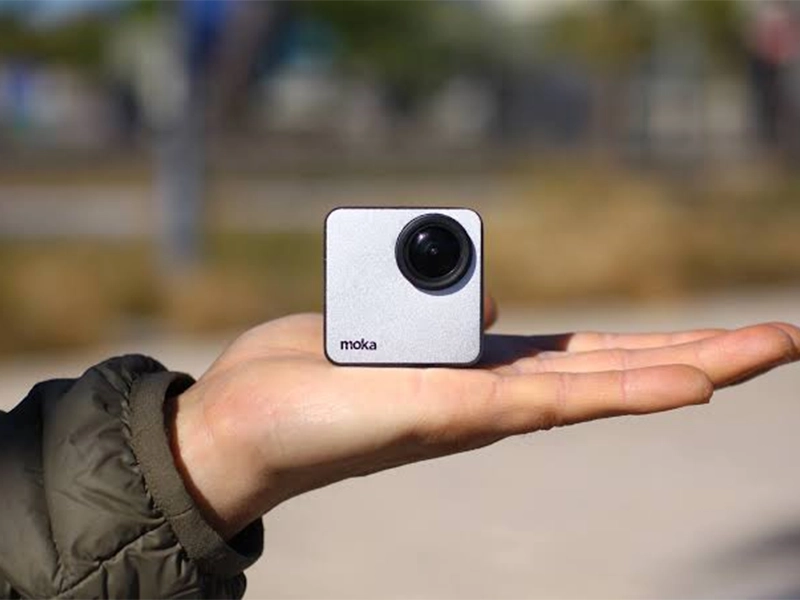
The Mokacam 4K Sports and Action Camera: Tiny but Powerful
How to Choose the Best Document Scanner for Your Needs