Constant digital interruptions can derail productivity and fragment your focus. Whether you are in a deep workflow, attending a critical meeting, or simply trying to enjoy an evening away from the screen, knowing how to turn off notifications is a crucial skill for mastering your digital environment. If you find yourself constantly reaching for a buzzing device, this guide will walk you through precisely how to stop the noise and regain control over your attention span. How to Turn Off Notifications To turn off notifications on Android, go to Settings > Apps & Notifications > Notifications and disable alerts for specific apps. On iPhone, open Settings > Notifications, select an app, and turn off Allow Notifications. You can also use Do Not Disturb or Focus Mode to temporarily silence alerts without changing individual app settings. When Should You Turn Off...
Constant digital interruptions can derail productivity and fragment your focus. Whether you are in a deep workflow, attending a critical meeting, or simply trying to enjoy an evening away from the screen, knowing how to turn off notifications is a crucial skill for mastering your digital environment. If you find yourself constantly reaching for a buzzing device, this guide will walk you through precisely how to stop the noise and regain control over your attention span.
How to Turn Off Notifications
To turn off notifications on Android, go to Settings > Apps & Notifications > Notifications and disable alerts for specific apps. On iPhone, open Settings > Notifications, select an app, and turn off Allow Notifications. You can also use Do Not Disturb or Focus Mode to temporarily silence alerts without changing individual app settings.
When Should You Turn Off Notifications?
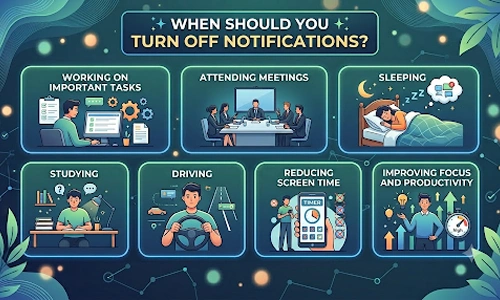
Notifications can be useful, but too many alerts often become distracting.
You may want to turn off notifications when:
- Working on important tasks
- Attending meetings
- Sleeping
- Studying
- Driving
- Reducing screen time
- Improving focus and productivity
Many users choose to keep only essential alerts enabled while silencing social media, gaming, and promotional notifications.
The Complete Guide to Turn Off Notifications on Android
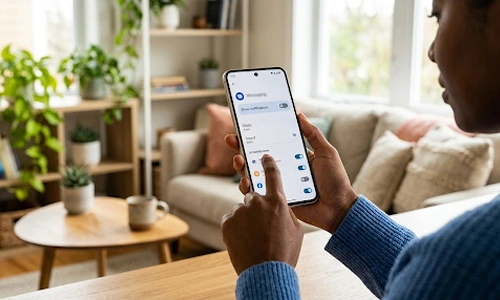
Navigating the Android ecosystem gives you granular control over your device's interruptions. To effectively manage this, you must first access your device's core notification settings.
- Access Settings: Open your device's Settings application and navigate to Apps & notifications (this may simply be labeled Notifications depending on your device's manufacturer).
- Manage App Alerts: Here, you can review recently sent alerts. Tap on any specific application in the list to disable its alerts entirely by toggling the master switch off.
- Mute the Noise: If you prefer a quieter environment without entirely losing visual cues, you can easily turn off the notification sounds Android systems use. Simply tap the specific alert category within an app's menu and change the default behavior from "Default" to "Silent." This ensures you still see the alert in your drop-down menu, but your device will not vibrate or chime.
How to Turn Off Notifications on iPhone
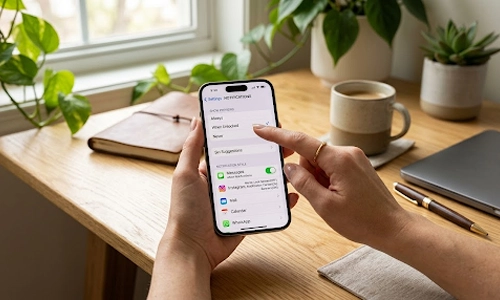
Apple’s iOS provides a streamlined, highly intuitive approach to managing digital interruptions, allowing you to quickly turn off notifications sent throughout your day.
- Access Settings: Open the Settings app and select Notifications.
- Customize App Behavior: Scroll through your installed applications. Tapping on an app allows you to toggle off "Allow Notifications" entirely or selectively disable alerts from appearing on your Lock Screen, Notification Center, or as Banners.
- Protect Your Privacy: A common privacy concern is sensitive information appearing when your device is locked and sitting on a desk. Fortunately, controlling your iPhone notifications on lock screen is straightforward. Under the Show Previews tab at the top of the main Notifications menu, select When Unlocked or Never. This is exactly how to hide message contents from prying eyes while still maintaining an awareness of incoming communication.
Common Notification Problems and Fixes
Sometimes notification settings do not behave as expected.
Here are some common issues:
Notifications Keep Returning
Check whether the app has updated and restored default settings.
Phone Still Vibrates
Verify vibration settings are disabled under Sound & Vibration settings.
Do Not Disturb Is Not Working
Review exception settings that may allow specific contacts or apps to bypass restrictions.
Important Alerts Are Missing
Make sure essential apps have notification permissions enabled.
Frequently Asked Questions (FAQ)
1. How do I temporarily stop all alerts on my phone?
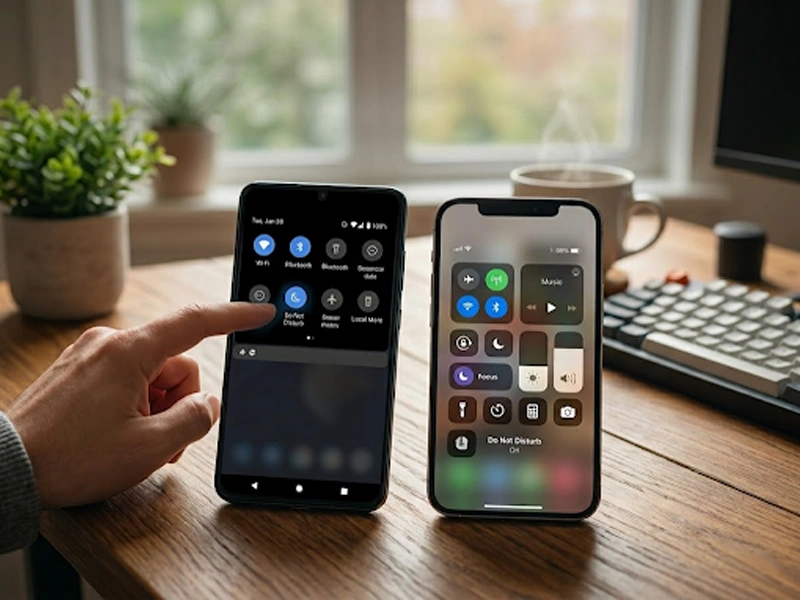
To quickly stop interruptions without changing permanent preferences, activate Do Not Disturb or Focus Mode via your device's control center.
2. How do I hide text preview contents on an Apple device?
To learn how to hide sensitive content, go to Settings > Notifications > Show Previews and select When Unlocked. This securely manages your iPhone notifications on lock screen.
3. Why does my phone still vibrate after changing my alert preferences?
To completely turn off notifications sounds android systems make, ensure your master "Sound & vibration" volume is muted, or verify the app is not overriding Do Not Disturb.
4. How do I restore alerts for an app I previously silenced?
If you need to turn alerts back on, revisit your device's core notification settings, select the specific application, and toggle the master switch back to the active position.
5. How do I turn off notifications for a few hours?
To temporarily stop alerts, use your device’s control center to enable Do Not Disturb or Focus Mode. You can schedule these features to turn off automatically after a set number of hours or when you leave a location.
6. How do I silence notifications only from specific apps?
Navigate to your device's core notifications settings, select the specific application from the list, and turn off its permissions. Alternatively, you can change the individual app's alert style to "Silent" so it appears visually without making a sound.
7. What is the difference between “Do Not Disturb” and silencing notifications?
"Do Not Disturb" is a global system setting that temporarily blocks all incoming sounds, vibrations, and visual alerts based on a timer or profile. Silencing notifications typically refers to permanently changing a specific app's alert preferences or turning off your phone's ringtone while still allowing notifications to appear on your screen.
8. Does silent mode turn off notifications?
No. Silent mode only mutes the audible sounds and vibrations of your device. Your notifications will still arrive, light up your screen, and appear on your lock screen unless you manually adjust your app alert preferences.
9. How can I prevent my phone from going silent when notifications are off?
If you want to know how to turn on sound for critical events while keeping general alerts off, use the Exceptions or Priority menu inside your Do Not Disturb settings. This allows you to whitelist specific phone numbers or critical applications so they always ring through.
10. How do I block unwanted notifications?
When an unwanted alert appears, long-press the notification banner directly from your screen to open its quick menu, where you can immediately select "Turn off notifications." You can also turn off notifications in iPhone and Android apps by revoking their notification permissions entirely in your main system settings.
11. Does turning off notifications save battery on Android?
Yes. When you turn off notifications sounds android systems use, you prevent the screen from waking up constantly and stop the vibration motor from draining power, which noticeably extends your overall battery life.
12. Can I turn off notifications without deleting an app?
Yes. Both Android and iPhone allow you to disable notifications while keeping the app installed and fully functional.
13. Will turning off notifications improve focus?
Many studies suggest reducing digital interruptions can improve concentration, productivity, and time management.
14. Can I disable notifications for social media apps only?
Yes. You can selectively disable alerts for apps like Facebook, Instagram, TikTok, and X without affecting other applications.
15. Do notifications affect battery life?
Frequent notifications can wake your screen, activate vibrations, and use background processes, which may contribute to battery drain.
16. What is Focus Mode on an iPhone?
Focus Mode allows users to customize which apps and contacts can send notifications during specific activities such as work, sleep, or personal time.
Notification Settings Comparison
| Feature |
Android |
iPhone |
| Turn Off All Notifications |
Yes |
Yes |
| Per-App Controls |
Yes |
Yes |
| Silent Notifications |
Yes |
Yes |
| Hide Lock Screen Alerts |
Yes |
Yes |
| Focus Mode |
Yes |
Yes |
| Scheduled Do Not Disturb |
Yes |
Yes |
Reversing the Process: How to Turn On Essential Alerts
While digital silence is golden, certain communications remain critical. If you have utilized a global "Do Not Disturb" or "Focus" mode to globally mute your device, you might need to know how to turn on bypasses for important contacts or essential work applications.
Both Android and iOS allow you to designate "Priority" or "Time Sensitive" exceptions within their respective “Do Not Disturb” and “Focus” menus. By configuring these exceptions, you ensure that an emergency call from a family member or a critical calendar reminder always breaks through the silence, keeping you both focused and safely connected.
Optimizing your smartphone's alert system transforms it from a source of anxiety into a genuine productivity tool. By fine-tuning these settings, you ensure that your attention remains exactly where you want it.

Why Turn Your Old Phone into a Security Camera?
Fastest Growing App of All Time (It’s ChatGPT)
How Entrepreneurs Make Use of Technology to Boost Cashflow
Print Screen Not Working? Here’s How to Fix It