To format a USB drive, connect it to your device, open storage settings, select the drive, choose “Format,” pick a file system (like FAT32 or exFAT), and confirm to erase all data. What Does Formatting a USB Drive Mean? Formatting a USB drive means erasing all data and setting up a fresh file system so it can store files properly. It helps fix errors, remove viruses, and improve performance. When Should You Format a USB Drive? You should format your USB drive if: It’s not opening or showing errors You want to delete everything quickly It’s infected with malware You need a different file system (FAT32, exFAT, NTFS) How to Format a USB Drive on Windows Follow these steps: Insert the USB drive Open File Explorer Right-click the USB drive Click Format Choose file system (FAT32, NTFS, exFAT) Click Start...
To format a USB drive, connect it to your device, open storage settings, select the drive, choose “Format,” pick a file system (like FAT32 or exFAT), and confirm to erase all data.
What Does Formatting a USB Drive Mean?
Formatting a USB drive means erasing all data and setting up a fresh file system so it can store files properly. It helps fix errors, remove viruses, and improve performance.
When Should You Format a USB Drive?
You should format your USB drive if:
- It’s not opening or showing errors
- You want to delete everything quickly
- It’s infected with malware
- You need a different file system (FAT32, exFAT, NTFS)
How to Format a USB Drive on Windows
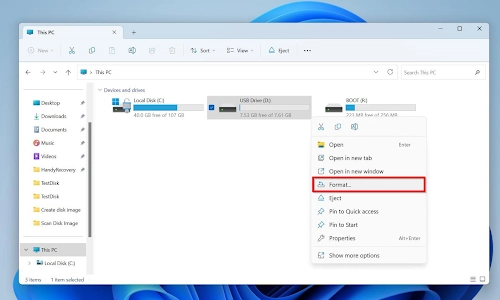
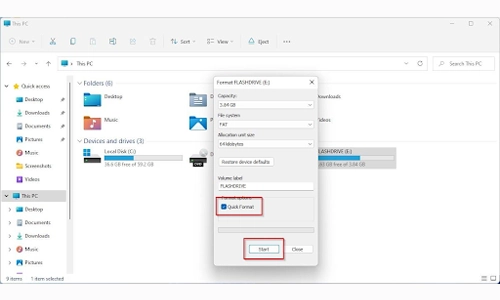
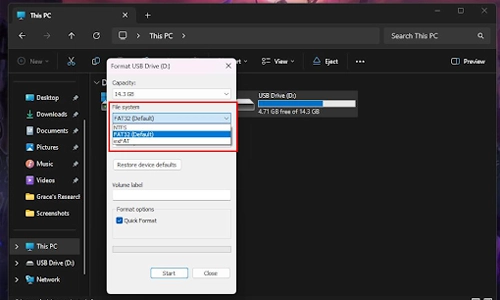
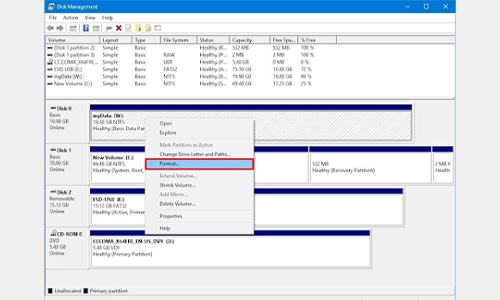
Follow these steps:
- Insert the USB drive
- Open File Explorer
- Right-click the USB drive
- Click Format
- Choose file system (FAT32, NTFS, exFAT)
- Click Start
How to Format a USB Drive on a Mac
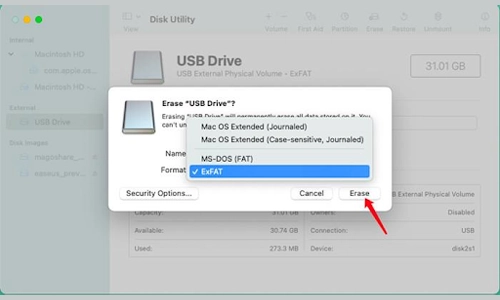
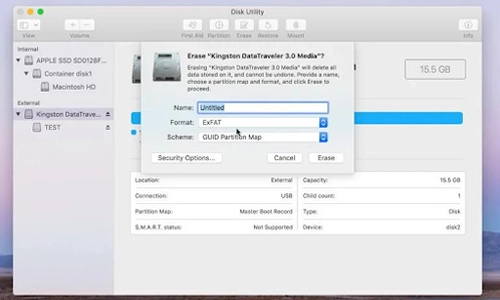
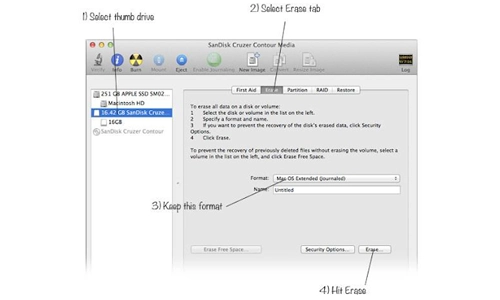
Steps for Mac users:
- Insert the USB drive
- Open Disk Utility
- Select your USB drive
- Click Erase
- Choose format (exFAT recommended)
- Click Erase
How to Format a USB Drive on Android
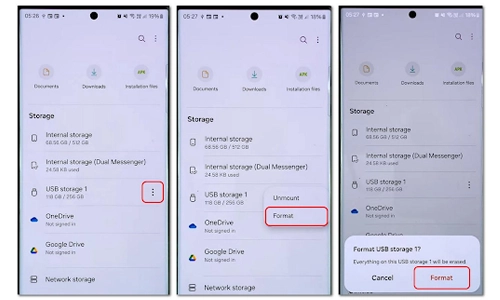
- Connect USB via OTG
- Go to Settings > Storage
- Select USB storage
- Tap Format
- Confirm
Best File System to Choose
- FAT32 → Compatible with most devices (limited file size)
- exFAT → Best for large files and modern devices
- NTFS → Ideal for Windows systems
Quick vs Full Format
- Quick Format → Fast, deletes file references only
- Full Format → Slower, checks for errors and wipes data completely
Important Tips Before Formatting
- Backup important files (formatting deletes everything)
- Safely eject the USB after use
- Choose the right file system for your needs
FAQs
1. How do I format a USB drive quickly?
Right-click the drive on Windows or use Disk Utility on Mac and select “Quick Format” or “Erase.”
2. Does formatting delete everything?
Yes, formatting completely erases all data on the USB drive.
3. Which format is best for USB drives?
exFAT is the best for most users because it supports large files and works on multiple devices.
4. Why can’t I format my USB drive?
It could be write-protected, corrupted, or infected with malware.
5. Can I recover data after formatting?
Sometimes, using recovery tools—but it’s not guaranteed.
Knowing how to format a USB drive is essential for fixing errors, improving performance, and keeping your storage clean. Just follow the right steps for your device and always back up your data first.



How OTA Updates Keep Connected Devices Secure and Smart
WhatsApp Username: How to Reserve Yours Today Fast
How VR Gaming and Eye Health Are Surprisingly Connected
Why Does Hitting a Remote Make It Work Again Easily?