A wireless mouse that suddenly stops working can be incredibly frustrating, especially when you're in the middle of important work. Whether you're using Windows 11, macOS, or Linux, wireless mouse connectivity issues are among the most common computer peripherals problems users face today. In this comprehensive guide, we'll walk you through the most effective solutions to get your wireless mouse working again, covering everything from basic troubleshooting to advanced fixes. Understanding Why Your Wireless Mouse Stopped Working Before diving into solutions, it's important to understand the common causes behind wireless mouse failures: Hardware Issues Dead or low batteries Damaged USB receiver Internal component failure Physical damage to the mouse Software Problems Outdated or corrupted drivers Power management settings Windows updates causing compatibility issues Bluetooth connectivity problems Environmental Factors Interference from other wireless devices Distance from the receiver Surface compatibility issues...
A wireless mouse that suddenly stops working can be incredibly frustrating, especially when you're in the middle of important work. Whether you're using Windows 11, macOS, or Linux, wireless mouse connectivity issues are among the most common computer peripherals problems users face today.
In this comprehensive guide, we'll walk you through the most effective solutions to get your wireless mouse working again, covering everything from basic troubleshooting to advanced fixes.
Understanding Why Your Wireless Mouse Stopped Working
Before diving into solutions, it's important to understand the common causes behind wireless mouse failures:
Hardware Issues
- Dead or low batteries
- Damaged USB receiver
- Internal component failure
- Physical damage to the mouse
Software Problems
- Outdated or corrupted drivers
- Power management settings
- Windows updates causing compatibility issues
- Bluetooth connectivity problems
Environmental Factors
- Interference from other wireless devices
- Distance from the receiver
- Surface compatibility issues
Solution 1: Check and Replace Batteries
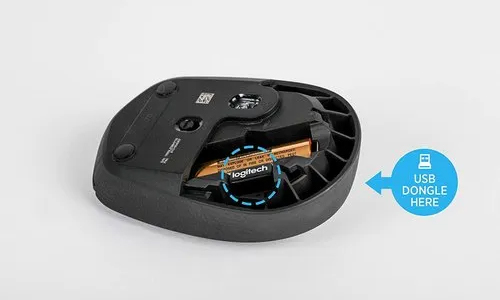
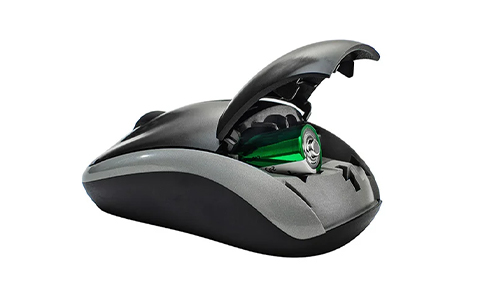
The most common reason for wireless mouse failure is battery depletion. Even if your mouse shows a light, the batteries might not provide sufficient power for proper operation.
Steps to follow
- Remove the battery cover from your wireless mouse
- Check if batteries are properly inserted with correct polarity
- Replace with fresh, high-quality batteries
- For rechargeable mouse, connect the charging cable for at least 30 minutes
- Test the mouse after battery replacement
Pro Tip: Use alkaline batteries for better performance and longer life compared to generic batteries.
Solution 2: Re-establish the Connection
Connection issues between your mouse and receiver are frequently the culprit behind wireless mouse problems.
For USB Receiver Mouse
- Unplug the USB receiver from your computer
- Wait 10 seconds
- Plug the receiver into a different USB port
- Press the connection button on your mouse (usually on the bottom)
- Press the connection button on the USB receiver if available
- Wait for the connection to establish (usually indicated by a solid light)
For Bluetooth Mouse
- Open Settings > Devices > Bluetooth & other devices
- Remove your mouse from the paired devices list
- Put your mouse in pairing mode (refer to manufacturer instructions)
- Add the mouse again through Bluetooth settings
Solution 3: Update or Reinstall Mouse Drivers
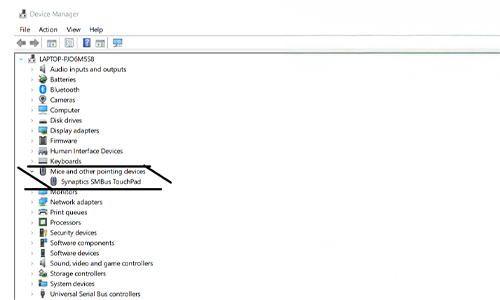
Outdated or corrupted drivers can cause your wireless mouse to malfunction, especially after Windows updates.
Windows 11 Driver Update Process
- Right-click on the Start button and select "Device Manager"
- Expand "Mice and other pointing devices"
- Right-click on your wireless mouse
- Select "Update driver" and choose "Search automatically"
- Restart your computer after driver installation
Alternative Method
- Download the latest drivers from the manufacturer's website
- Uninstall current mouse drivers from Device Manager
- Install the downloaded drivers
- Restart your computer
Solution 4: Adjust Power Management Settings
Windows power management features can sometimes disable USB ports to save energy, affecting your wireless mouse receiver.
Steps to modify power settings
- Open Device Manager
- Expand "Universal Serial Bus controllers"
- Right-click on each "USB Root Hub" entry
- Select "Properties" > "Power Management" tab
- Uncheck "Allow the computer to turn off this device to save power"
- Click OK and restart your computer
Solution 5: Check for Physical Obstructions and Interference
Wireless mouse can be affected by physical barriers and electronic interference.
Troubleshooting interference
- Move the USB receiver closer to the mouse (use a USB extension cable if needed)
- Remove other wireless devices from the vicinity
- Change the surface you're using the mouse on
- Clean the mouse sensor with a soft, dry cloth
- Ensure there are no metallic objects between the mouse and receiver
Solution 6: Test on Different Surfaces and Clean the Sensor
Mouse sensor issues can mimic connectivity problems, making it appear as if your wireless mouse has stopped working.
Surface testing
- Try using the mouse on different surfaces (mouse pad, paper, desk)
- Avoid reflective or transparent surfaces
- Clean the sensor area with compressed air or a cotton swab
- Check for hair or debris blocking the sensor
Solution 7: Advanced Troubleshooting
If basic solutions don't work, try these advanced methods:
Registry Fix (Advanced Users Only)
- Press Windows + R, type "regedit" and press Enter
- Navigate to HKEY_LOCAL_MACHINE\SYSTEM\CurrentControlSet\Services\mouclass
- Right-click "UpperFilters" and select "Delete" if present
- Restart your computer
System File Check
- Open Command Prompt as Administrator
- Type "sfc /scannow" and press Enter
- Allow the system file checker to complete
- Restart your computer
When to Consider Hardware Replacement
If none of the above solutions work, your wireless mouse may have a hardware failure. Consider replacement if:
- The mouse is over 3 years old
- Physical damage is visible
- Multiple wireless devices fail with the same receiver
- The mouse works intermittently despite following all troubleshooting steps
Prevention Tips for Future Issues
To avoid future wireless mouse problems
- Regular Maintenance: Clean your mouse monthly and replace batteries proactively
- Driver Updates: Keep your system and drivers updated
- Proper Storage: Store your mouse in a safe place when not in use
- Quality Batteries: Invest in good-quality batteries or rechargeable options
- Interference Management: Keep your workspace organized and minimize wireless device conflicts
Frequently Asked Questions (FAQs)
Why is my wireless mouse not working but the light is on?
If your wireless mouse light is on but it's not working, the issue is typically related to connectivity or driver problems rather than power. Try re-pairing the mouse with its receiver, updating drivers, or checking for interference. The light indicates power is reaching the mouse, but data transmission may be interrupted.
How do I fix my wireless mouse not working on Windows 11?
For Windows 11 wireless mouse issues:
- Update mouse drivers through Device Manager
- Check Windows Update for system updates
- Disable USB power management in Device Manager
- Run the built-in troubleshooter from Settings > System > Troubleshoot
- Re-pair the mouse if it's Bluetooth-enabled.
Why is my wireless mouse not working even with new batteries?
New batteries don't always solve wireless mouse problems. Other causes include: corrupted drivers, USB receiver issues, interference from other devices, incompatible surfaces, damaged internal components, or incorrect battery installation. Try re-pairing the connection and updating drivers before assuming hardware failure.
Why does my wireless mouse not work but my keyboard does?
Wireless mouse and keyboards often use different communication protocols or frequencies, even if they share the same receiver. Mouse-specific issues include: outdated mouse drivers, different power requirements, surface sensitivity problems, or mouse-specific interference. Try connecting the mouse to a different USB port or updating only the mouse drivers.
How do I fix the left click not working on my wireless mouse?
Left-click problems on wireless mouse can be hardware or software related. Try: 1) Cleaning around the left-click button, 2) Adjusting mouse settings in Control Panel, 3) Testing the mouse on another computer, 4) Updating mouse drivers, or 5) Using compressed air to clean internal mechanisms. If the problem persists, it may indicate button mechanism failure.
What should I do if my wireless mouse has no light and isn't working?
No light usually indicates power issues. Check: 1) Battery orientation and contact points, 2) Battery charge level with a multimeter, 3) Internal battery contacts for corrosion, 4) Power switch position, and 5) charging port functionality for rechargeable mouse. If batteries and connections are good, the internal power circuit may be damaged.
Can interference cause my wireless mouse to stop working?
Yes, interference is a common cause of wireless mouse problems. Sources include: Wi-Fi routers, smartphones, other wireless peripherals, metal objects, and electromagnetic devices. To minimize interference: move the USB receiver closer to the mouse, change the mouse's operating channel if possible, remove nearby electronic devices, and use a USB extension cable to position the receiver optimally.
How often should I replace wireless mouse batteries?
Battery life depends on usage and battery quality, typically lasting 3-12 months. Signs you need replacement: cursor movement becomes erratic, mouse response delays, intermittent connectivity, or the low-battery indicator activates. High-quality alkaline batteries generally last longer than generic ones, and rechargeable batteries offer better long-term value.
Why does my wireless mouse work intermittently?
Intermittent wireless mouse operation suggests: low battery power, loose connections, driver conflicts, surface compatibility issues, or interference patterns. Try replacing batteries first, then clean the sensor, update drivers, test different surfaces, and check for periodic interference sources like microwave ovens or other wireless devices.
Can Windows updates cause wireless mouse problems?
Yes, Windows updates can sometimes cause wireless mouse issues by: updating generic drivers that conflict with manufacturer software, changing power management settings, altering USB port behavior, or introducing compatibility bugs. After problematic updates, try rolling back mouse drivers, checking Device Manager for conflicts, or downloading updated drivers from the manufacturer.
How do I know if my wireless mouse receiver is damaged?
Signs of receiver damage include: no response from multiple known-working mice, physical damage to the USB connector, the receiver not being recognized by the computer, or connectivity issues across different USB ports. Test the receiver with another mouse or try your mouse with a different receiver to isolate the problem.
What's the difference between 2.4GHz and Bluetooth wireless mice?
2.4GHz mice use dedicated USB receivers and typically offer lower latency, longer battery life, and more stable connections. Bluetooth mice connect directly to your computer's Bluetooth adapter, don't require a USB receiver, but may have slightly higher latency and more connection complexity. Choose based on your specific needs and available ports.
Can I use my wireless mouse while it's charging?
Most rechargeable wireless mice support usage while charging, but this varies by model. Some mice automatically switch to wired mode when plugged in, while others continue wireless operation. Check your mouse manual for specific capabilities. Using while charging may slightly reduce battery lifespan but is generally safe for occasional use.
How do I clean my wireless mouse sensor properly?
To clean the sensor: 1) Turn off the mouse and remove batteries, 2) Use compressed air to blow out debris, 3) Gently clean the sensor lens with a cotton swab and isopropyl alcohol, 4) Clean the mouse feet and surrounding area, 5) Allow complete drying before reassembly. Avoid using water or harsh chemicals that could damage internal components.
Why does my wireless mouse lag or have delayed response?
Mouse lag can result from: low battery power, interference, outdated drivers, high CPU usage, incompatible surfaces, distance from receiver, or power management settings. To reduce lag: replace batteries, move closer to the receiver, close unnecessary programs, update drivers, use a proper mouse pad, and disable USB power saving features.
A wireless mouse that stopped working doesn't necessarily mean you need to buy a new one immediately. By following these systematic troubleshooting steps, you can resolve most wireless mouse issues quickly and effectively. Start with the simplest solutions like checking batteries and connections before moving to more advanced troubleshooting methods.
Remember that prevention is always better than cure – regular maintenance and keeping your drivers updated can prevent many of these issues from occurring in the first place.


Why Are Vertu Phones So Expensive?
Can a Smart Home Work Without Internet? Explained
Solana’s Worth in Future: What Could 1 SOL Be Worth?
How to Wake Up the System From Sleep Mode on Any Computer