Accidents happen. One minute you're scrolling through your phone, and the next, it's at the bottom of the sink, swimming in your iced latte, or caught in an unexpected downpour. But don’t panic just yet! If you're wondering how to save data from a wet smartphone, this guide breaks down everything you need to know about mobile security and recovery even if your phone won't turn on. First Things First: Turn Off the Phone Immediately If your phone is still on, power it down immediately. Water and electricity don't mix, and continued operation can short internal circuits, making data recovery harder. Tip: Don’t charge the phone or press random buttons. More damage = lower chances of data recovery. Step-by-Step: How to Save a Wet Phone Remove It From Water Immediately. The longer it stays submerged, the worse the internal damage....
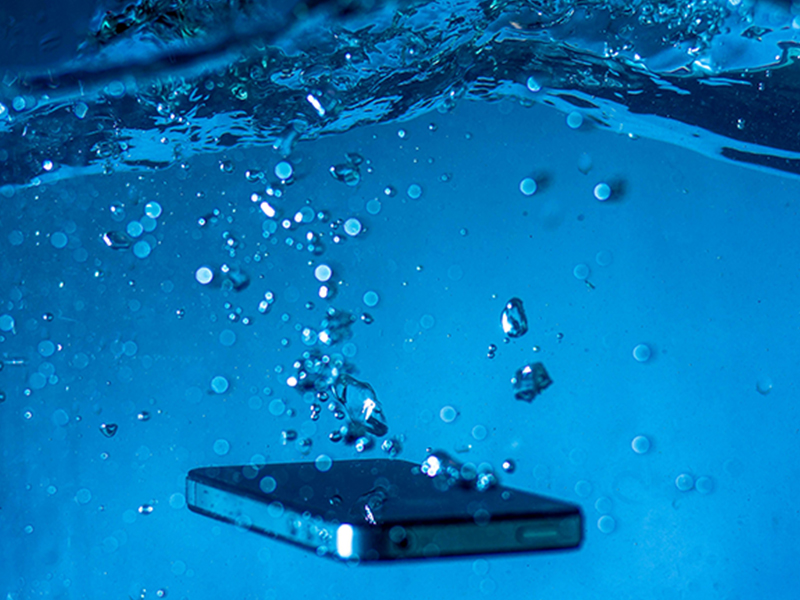
Accidents happen. One minute you're scrolling through your phone, and the next, it's at the bottom of the sink, swimming in your iced latte, or caught in an unexpected downpour. But don’t panic just yet! If you're wondering how to save data from a wet smartphone, this guide breaks down everything you need to know about mobile security and recovery even if your phone won't turn on.
First Things First: Turn Off the Phone Immediately
If your phone is still on, power it down immediately. Water and electricity don't mix, and continued operation can short internal circuits, making data recovery harder.
Tip: Don’t charge the phone or press random buttons. More damage = lower chances of data recovery.
Step-by-Step: How to Save a Wet Phone
- Remove It From Water Immediately. The longer it stays submerged, the worse the internal damage.
- Dry the Exterior. Pat dry with a lint-free cloth. Don’t shake the phone—it could drive water deeper.
- Remove Accessories. Take out the SIM card, memory card, and case. Keep them aside to dry.
- Use a Vacuum or Silica Gel (Not Rice!). Silica gel packets (those tiny pouches that come with new electronics) absorb moisture better than rice. Alternatively, use a low-suction vacuum cleaner to pull water out gently.

Can You Save Data From a Water Damaged Phone?
Yes—but only if you act quickly and don’t power it back on before it's completely dry or professionally assessed.
How to Recover Data From a Phone With Severe Water Damage
Here’s where things get a bit technical. If your phone refuses to turn on, you still have a few options:
1. Use a Data Recovery Tool (If It Powers On Later)
Try tools like Dr.Fone, Tenorshare UltData, or EaseUS MobiSaver. These tools scan the phone's internal memory for recoverable files.
2. Connect It to a PC in Recovery Mode
For Android, use ADB (Android Debug Bridge). For iPhones, attempt iTunes or Finder recovery if recognized.
3. Remove and Access the Memory Chip
Requires professional help. If you stored files in internal memory, data recovery centers can chip-off and read the memory manually.
Best Way to Recover Data From a Water Damaged Phone
- Backups: Your best defense is always a good backup habit.
- Cloud Storage: Check Google Photos, iCloud, Dropbox—your data might already be safe online.
- Professional Data Recovery Labs: Costly, but often the only hope if the damage is severe.
What to Do If Your Phone Falls in Water But Still Works
Lucky you! Even if it’s working now, water damage can sneak up later. Here’s what to do:
- Power it off and dry it thoroughly.
- Avoid charging for at least 24-48 hours.
- Back up your data immediately to cloud or computer.
- Monitor for odd behavior—lag, screen flicker, or audio distortion.
Is Data Recovery Possible After Water Damage?
Yes, but it depends on:
- The extent of damage
- How quickly you act
- Whether you kept backups
Important: Even if your phone dies, the memory chip can sometimes be salvaged if handled professionally.

How to Recover Data From Water Damaged Phone That Won’t Turn On
- Try charging after 48 hours: If it boots, back up everything immediately.
- Use OTG + Mouse: If your touch screen is dead but the device powers up.
- Professional data extraction: Requires disassembly and chip-level access.
Pro Tips to Prevent Future Disaster
- Invest in a waterproof phone or case
- Use cloud storage and backup apps like Google Drive or iCloud
- Enable auto-sync for photos, contacts, and messages
- Keep your phone away from bathrooms, sinks, and poolside tables
Frequently Asked Questions (FAQs)
Can you save data from a water damaged phone?
Yes, but time is critical. Use cloud backups, or data recovery tools if the phone powers on. If not, professionals may help retrieve internal memory.
What is the best way to recover data from a water damaged phone?
Back up immediately if it turns on. Use tools like Dr.Fone or get professional help if it doesn’t boot.
How to save a web mobile phone?
Dry it thoroughly, don’t power it on, and seek help. Prevent future risk by waterproofing and enabling auto-cloud backups.
Can you recover data if the phone won’t turn on?
Yes, through advanced recovery methods like chip-off extraction at data labs.
What should I do if my phone gets wet but works fine?
Back up your data immediately. Water damage may not show symptoms right away.
It’s never a good day when your phone takes a dive. But knowing how to save data from a wet smartphone can make all the difference. The key? Speed, knowledge, and calm execution. Don’t rush to power it back on. Take the proper steps—or get professional help—before that fleeting splash turns into permanent loss.



Can a Smart Home Work Without Internet? Explained
Solana’s Worth in Future: What Could 1 SOL Be Worth?
How to Wake Up the System From Sleep Mode on Any Computer
The Mokacam 4K Sports and Action Camera: Tiny but Powerful