Screen sharing used to be something we associated with office laptops, meeting software, and long “Can you see my screen?” moments. But WhatsApp decided to make life easier by dropping a feature that feels like a mini tech miracle—screen sharing directly during a video call. Whether you’re helping your mom find a setting, showing a friend how to edit a photo, or presenting something quickly for work, this tool is a game-changer. Here’s your easy, beginner-friendly guide on how to share screen on WhatsApp video call on both Android and iPhone. What You Need Before You Start Before jumping in, ensure: You’re using the latest version of WhatsApp You have a stable internet connection You’re on a voice + video capable device Your call partner is also on an updated version of WhatsApp That’s it. No extra apps, no complicated...
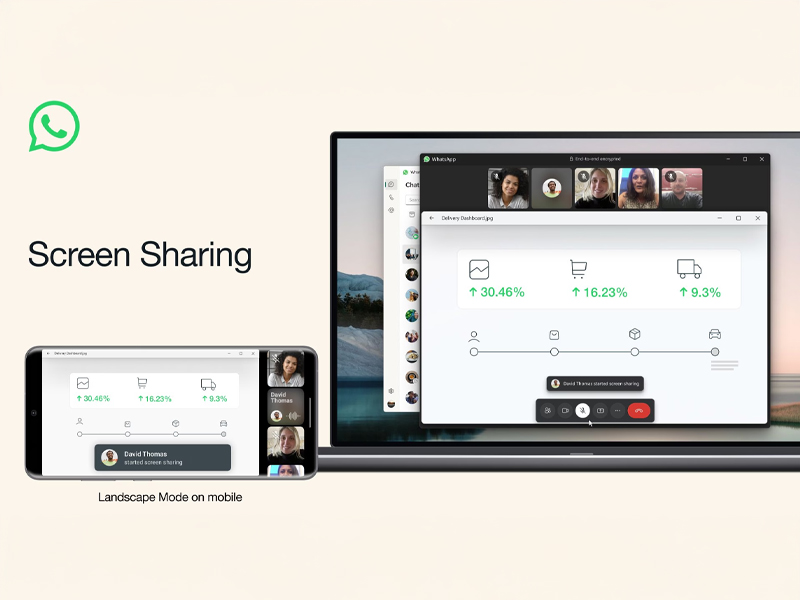
Screen sharing used to be something we associated with office laptops, meeting software, and long “Can you see my screen?” moments. But WhatsApp decided to make life easier by dropping a feature that feels like a mini tech miracle—screen sharing directly during a video call. Whether you’re helping your mom find a setting, showing a friend how to edit a photo, or presenting something quickly for work, this tool is a game-changer.
Here’s your easy, beginner-friendly guide on how to share screen on WhatsApp video call on both Android and iPhone.
What You Need Before You Start
Before jumping in, ensure:
- You’re using the latest version of WhatsApp
- You have a stable internet connection
- You’re on a voice + video capable device
- Your call partner is also on an updated version of WhatsApp
That’s it. No extra apps, no complicated setup.
How to Share Screen on WhatsApp Video Call (Android)
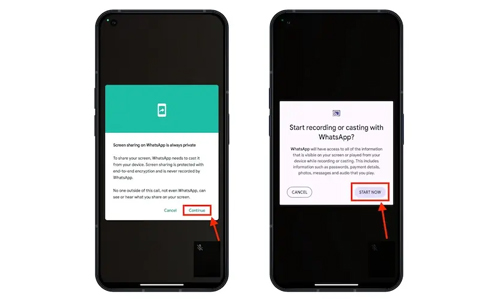
- Open WhatsApp and start a video call with the person you want to share your screen with.
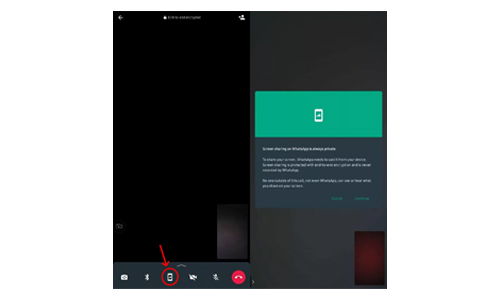
- Once the call connects, look for the Share Screen icon on the bottom toolbar.
- Tap Share Screen → A confirmation prompt appears.
- Select Start Now to allow screen broadcasting.
- Your entire phone screen will now be visible to the other person.
- To stop, tap Stop Sharing.
A small red indicator will show that your screen is live, just like other screen-share apps.
How to Share Screen on WhatsApp Video Call (iPhone)
- Open WhatsApp → Start a video call.
- Tap the Share Screen button (looks like two overlapping rectangles).
- You’ll get a pop-up saying WhatsApp will access your screen.
- Tap Start Broadcast.
- After a 3-second countdown, your screen is shared.
- Tap Stop Broadcast anytime to end it.
iOS also displays a red “screen recording” icon at the top to indicate that sharing is active.
What You Can Do With Screen Sharing
- Help someone troubleshoot their phone
- Show steps during online classes or demos
- Share presentations without opening your laptop
- Assist parents with app navigation
- Show photos, settings, or documents easily
Anything visible on your screen is shareable.
Is It Safe?
WhatsApp screen sharing uses end-to-end encryption, meaning your broadcast is protected. However, be mindful:
- Turn off notifications before sharing
- Avoid opening apps with sensitive information
- Close banking or password apps
A quick prep saves a lot of awkwardness!
Pro Tip
Turn on Do Not Disturb before sharing your screen to prevent unexpected notifications from flashing during the call.
WhatsApp’s new screen-sharing option makes remote help, collaboration, and communication effortless. Now that you know how to share screen on WhatsApp video call, you can guide, show, teach, demonstrate, and troubleshoot with confidence—no extra apps required.



The Top 10 Hackers in the World and the Countries Behind Them
When the Virtual Becomes Real: How Cyberattacks Can Cause Physical Harm
The Future of Vision: Exploring the Potential of Augmented Reality Contact Lenses
Smart Home Ready: How Fiber Internet Powers the Modern Household