Do you need to manage both personal and professional WhatsApp conversations on the same phone? Whether you're a business owner juggling work and personal contacts or someone who needs separate WhatsApp accounts for different purposes, running dual WhatsApp on your Android device is not only possible but easier than ever. With WhatsApp's recent official support for multiple accounts and various Android manufacturer solutions, you now have several reliable methods to use two WhatsApp accounts on one device. This comprehensive guide will walk you through every available method, from WhatsApp's native multiple account feature to third-party solutions and built-in Android options. Why Use Dual WhatsApp? Before diving into the methods, let's understand why millions of users need dual WhatsApp functionality: Professional Separation: Keep work conversations separate from personal chats for better organization and work-life balance. Business Management: Use one account for...
Do you need to manage both personal and professional WhatsApp conversations on the same phone? Whether you're a business owner juggling work and personal contacts or someone who needs separate WhatsApp accounts for different purposes, running dual WhatsApp on your Android device is not only possible but easier than ever.
With WhatsApp's recent official support for multiple accounts and various Android manufacturer solutions, you now have several reliable methods to use two WhatsApp accounts on one device. This comprehensive guide will walk you through every available method, from WhatsApp's native multiple account feature to third-party solutions and built-in Android options.
Why Use Dual WhatsApp?

Before diving into the methods, let's understand why millions of users need dual WhatsApp functionality:
- Professional Separation: Keep work conversations separate from personal chats for better organization and work-life balance.
- Business Management: Use one account for customer service and another for internal team communication.
- Privacy Control: Maintain separate privacy levels for different social circles, allowing you to keep your contacts distinct.
- Regional Communication: Use different numbers for different countries or regions if you travel frequently.
- Family Management: Parents might want separate accounts for family coordination and personal use.
Method 1: WhatsApp's Official Multiple Accounts Feature (Recommended)

WhatsApp now officially supports multiple accounts on Android devices. To set up a second account, you need a second phone number and SIM card, or a phone that accepts multi-SIM or eSIM. Simply open your WhatsApp settings, click on the arrow next to your name, and click "Add account".
Requirements
- Android device with dual SIM or eSIM capability
- Two active phone numbers
- Updated WhatsApp app (version 2.23.20 or later)
Step-by-Step Setup
Step 1: Verify Your Phone Supports Multiple Accounts
- Open WhatsApp
- Go to Settings (three dots in top-right corner)
- Look for an arrow next to your profile name
- If you see the arrow, your device supports multiple accounts
Step 2: Add Second Account
- Tap the arrow next to your name in WhatsApp Settings
- Select "Add Account"
- Choose which SIM card/number to use for the second account
- Follow the verification process with your second phone number
Step 3: Set Up Individual Preferences
- Configure privacy settings for each account separately
- Customize notification preferences for each account
- Set different profile pictures and status messages
Step 4: Switch Between Accounts
- Tap your profile name at the top of WhatsApp
- Select which account you want to use
- The app will instantly switch between accounts
Advantages
- Official WhatsApp feature - completely safe and legitimate
- Seamless switching between accounts
- Individual privacy and notification controls
- No third-party apps required
- Automatic backups for both accounts
Limitations
- Requires two active phone numbers
- Only available on Android with dual SIM/eSIM support
- Currently rolling out gradually to all users
Method 2: WhatsApp + WhatsApp Business Combination
The simplest dual WhatsApp setup involves using both the regular WhatsApp app and WhatsApp Business app simultaneously.
Requirements
- Two phone numbers (can be from the same or different carriers)
- Both WhatsApp and WhatsApp Business apps installed
Step-by-Step Setup
Step 1: Install Both Apps
- Keep your existing WhatsApp with your primary number
- Download WhatsApp Business from Google Play Store
- Do not uninstall regular WhatsApp
Step 2: Set Up WhatsApp Business
- Open WhatsApp Business
- Verify with your second phone number
- Complete the business profile setup
- Add business information (optional but recommended)
Step 3: Customize for Easy Identification
- Use different notification sounds for each app
- Set distinct profile pictures
- Organize apps in separate folders or home screen areas
Advantages
- Two completely separate WhatsApp installations
- Different feature sets (business tools in WhatsApp Business)
- Independent backup and restore options
- Works on all Android devices
- No modifications to original WhatsApp
Limitations
- Requires two phone numbers
- WhatsApp Business has a more business-focused interface
- Need to manage two separate apps
Method 3: Android Built-in Dual App Features
Many Android manufacturers include built-in dual app functionality. This feature allows you to duplicate or create a mirror image of a chosen app, creating two WhatsApp apps on your phone. Features like Samsung's Dual Messenger, Xiaomi's Dual Apps, OnePlus's Parallel Apps, and similar options on ColorOS, OxygenOS, Nothing OS, MIUI, and HyperOS offer this capability.
Available on These Brands
- Samsung: Dual Messenger
- Xiaomi/Redmi: Dual Apps
- OnePlus: Parallel Apps
- Oppo: App Cloner
- Vivo: App Clone
- Huawei: App Twin
- Realme: App Cloner
Step-by-Step Setup (Samsung Example)
Step 1: Access Dual Messenger
- Open Settings on your Samsung device
- Go to "Advanced Features"
- Select "Dual Messenger"
- Find WhatsApp in the list
Step 2: Enable Dual WhatsApp
- Toggle on WhatsApp
- Accept the terms and conditions
- Wait for the system to create a duplicate app
Step 3: Set Up Second Account
- Look for a WhatsApp icon with a dual symbol
- Open the duplicated WhatsApp
- Verify with your second phone number
- Complete setup normally
For Other Brands
- Xiaomi (MIUI): Settings > Apps > Dual Apps > Enable WhatsApp
- OnePlus (OxygenOS): Settings > Utilities > Parallel Apps > Enable WhatsApp
- Oppo (ColorOS): Settings > App Cloner > Clone WhatsApp
- Vivo: Settings > App Clone > Clone WhatsApp
Advantages
- Native Android feature - no third-party apps needed
- Completely separate app instances
- Independent data and settings
- Works with any phone numbers
- Integrated into system settings
Limitations
- Not available on all Android devices (notably absent from Google Pixel and Motorola)
- May use slightly more device resources
- Both apps share the same app permissions initially
Method 4: Third-Party App Cloning Solutions
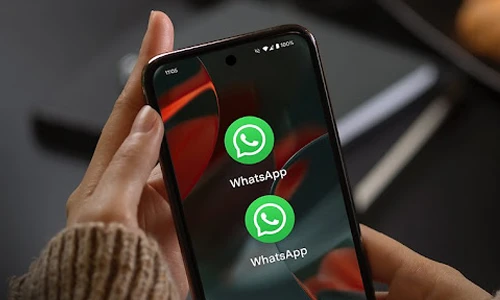
For devices without built-in dual app features (like Google Pixel or Motorola), third-party solutions provide reliable alternatives.
Recommended Apps
Parallel Space (Most Popular)
- Download: Google Play Store
- Features: Multi-account support, privacy protection, customization options
- Setup: Install Parallel Space → Add WhatsApp → Setup with second number
Island (Advanced Users)
- Download: Google Play Store
- Features: Work profile-based isolation, enhanced security
- Setup: More complex but offers better separation
Dual Space
- Download: Google Play Store
- Features: Simple interface, fast switching
- Setup: Similar to Parallel Space
Step-by-Step Setup (Parallel Space Example)
Step 1: Install and Setup Parallel Space
- Download Parallel Space from Google Play Store
- Open the app and complete initial setup
- Grant necessary permissions
Step 2: Clone WhatsApp
- Tap the "+" icon in Parallel Space
- Select WhatsApp from the list of apps
- Wait for the cloning process to complete
Step 3: Setup Second Account
- Open WhatsApp from within Parallel Space
- Verify with your second phone number
- Complete normal WhatsApp setup
Step 4: Access Your Dual WhatsApp
- Open Parallel Space to access the cloned WhatsApp
- Or use the floating icon feature for quick access
- Switch between regular and cloned WhatsApp as needed
Advantages
- Works on any Android device
- Multiple app cloning capabilities
- Additional privacy features
- Some offer theming and customization
Limitations
- Requires third-party app installation
- May consume more battery and storage
- Potential privacy concerns with some apps
- Regular updates needed for compatibility
Method 5: Using Web WhatsApp and Mobile App
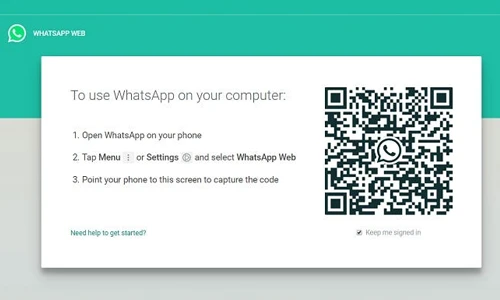
For occasional dual WhatsApp access, you can use the web version alongside your mobile app.
Setup Process
- Keep your primary WhatsApp account on your phone
- Open WhatsApp Web in a browser
- Scan the QR code with your second WhatsApp account (from another device or using methods above)
- Use both simultaneously
Advantages
- No additional apps needed
- Easy switching between accounts
- Full WhatsApp functionality on web
Limitations
- Requires internet connection for web version
- Need another device for the second account initially
- Less convenient than native mobile solutions
Troubleshooting Common Issues
Issue 1: Verification Code Not Received
Solutions:
- Ensure both numbers have good network coverage
- Try SMS instead of call verification, or vice versa
- Wait a few minutes before requesting another code
- Check if the number is already registered with another WhatsApp account
Issue 2: App Crashing or Not Opening
Solutions:
- Update both WhatsApp apps to the latest versions
- Clear cache for WhatsApp apps
- Restart your device
- Re-install the problematic app
Issue 3: Notifications Not Working Properly
Solutions:
- Check notification settings for each WhatsApp account
- Ensure both apps have proper permissions
- Customize notification sounds to distinguish between accounts
- Check device battery optimization settings
Issue 4: Storage Issues
Solutions:
- Regularly back up and delete old media files
- Use cloud storage for media backup
- Monitor app storage usage in device settings
- Consider using WhatsApp's built-in storage management tools
Issue 5: Performance Impact
Solutions:
- Close unnecessary background apps
- Monitor RAM usage and clear cache regularly
- Consider using lighter third-party cloning solutions
- Keep only essential apps running simultaneously
Security and Privacy Considerations

Best Practices
- Use Strong Security: Enable two-step verification on both accounts
- Separate Backups: Ensure independent backup schedules for each account
- Review Permissions: Regularly check app permissions for cloned apps
- Keep Updated: Update all apps regularly for security patches
- Trusted Sources: Only use official apps or well-reviewed third-party solutions
Privacy Tips
- Use different privacy settings for each account
- Consider separate contact lists for different purposes
- Review and adjust who can see your profile information
- Be mindful of status updates visibility across accounts
Performance Optimization Tips
Reduce Resource Usage
- Selective Sync: Disable auto-download for media files on secondary accounts
- Notification Management: Customize notification frequency to reduce interruptions
- Background Activity: Limit background refresh for less important accounts
- Storage Management: Regularly clean up chat history and media files
Battery Optimization
- Use device battery optimization features selectively
- Disable location sharing on accounts that don't need it
- Reduce frequency of backup operations
- Monitor app battery usage and adjust settings accordingly
Legal and Terms of Service Considerations
WhatsApp's Position
- Using multiple accounts with different phone numbers is generally acceptable
- The official multiple accounts feature is fully supported
- WhatsApp Business + regular WhatsApp combination is encouraged
- Third-party cloning apps exist in a gray area but are generally tolerated
Recommendations
- Prefer official solutions (native multiple accounts, WhatsApp Business)
- Use manufacturer-provided dual app features when available
- Be cautious with third-party apps and read their privacy policies
- Avoid sharing login credentials across platforms
Future of Dual WhatsApp

What's Coming
- Expanded availability of official multiple accounts feature
- Better integration between WhatsApp and WhatsApp Business
- Enhanced privacy controls for multiple accounts
- Improved sync and backup options across accounts
Industry Trends
- More manufacturers adding native app cloning features
- Better integration with work profile management
- Enhanced security features for business users
- Improved cross-platform synchronization options
Frequently Asked Questions

How to download another WhatsApp?
You can download WhatsApp Business from the Google Play Store as a second WhatsApp app, or use your device's built-in dual app feature to clone the regular WhatsApp. For devices without dual app support, third-party apps like Parallel Space can create a second WhatsApp instance. Each method requires a separate phone number for verification.
Can I have multiple WhatsApp accounts?
Yes, you can have multiple WhatsApp accounts on one device using several methods: WhatsApp's official multiple accounts feature (for dual SIM phones), using WhatsApp alongside WhatsApp Business, manufacturer dual app features, or third-party cloning apps. Each account needs a unique phone number for verification.
Can I use 2 WhatsApp accounts on one phone?
Absolutely! You can use 2 WhatsApp accounts on one phone through: official WhatsApp multiple accounts feature, WhatsApp + WhatsApp Business combination, built-in Android dual app features (Samsung Dual Messenger, Xiaomi Dual Apps, etc.), or third-party apps like Parallel Space. All methods work reliably on modern Android devices.
Can I use two WhatsApp on one mobile?
Yes, modern Android devices support running two WhatsApp accounts simultaneously. Use WhatsApp's native multiple accounts feature if you have dual SIM, combine regular WhatsApp with WhatsApp Business, enable your manufacturer's dual app feature, or use trusted third-party cloning apps. Each requires a separate phone number.
How to use 2 WhatsApp in one phone with different numbers?
To use 2 WhatsApp accounts with different numbers: enable WhatsApp's multiple accounts feature in Settings > tap arrow next to your name > Add Account, or use your phone's built-in dual app feature found in Settings (called Dual Messenger on Samsung, Dual Apps on Xiaomi, etc.), or install WhatsApp Business alongside regular WhatsApp.
Can I use the same WhatsApp number on two devices?
No, WhatsApp doesn't allow using the same phone number on multiple devices simultaneously as primary accounts. However, you can use WhatsApp Web, Desktop, or Companion mode to access your account on additional devices while keeping your phone as the primary device. Each phone number can only have one active WhatsApp account.
Can I use WhatsApp without a phone number?
No, WhatsApp requires phone number verification to create and activate accounts. You cannot use WhatsApp without providing a valid phone number for SMS or call verification. This is a fundamental security and identity verification requirement that cannot be bypassed through official means.
Is dual WhatsApp safe and legal?
Using dual WhatsApp through official methods (WhatsApp's multiple accounts feature, WhatsApp Business, manufacturer dual app features) is completely safe and legal. Third-party cloning apps are generally safe if downloaded from reputable sources like Google Play Store, but review their privacy policies. Avoid unofficial WhatsApp modifications or suspicious apps.
Does dual WhatsApp consume more battery?
Yes, running two WhatsApp accounts typically consumes more battery as both apps run background processes, sync data, and handle notifications. However, the impact varies by method: official solutions are most optimized, manufacturer dual apps are well-integrated, while third-party cloners may use more resources. Optimize settings to minimize battery drain.
Can I backup both WhatsApp accounts separately?
Yes, each WhatsApp account maintains independent backups. WhatsApp's multiple accounts feature handles backups automatically for each account. When using separate apps (WhatsApp + WhatsApp Business, cloned apps), configure backup settings individually for each account to ensure your chat history and media are properly saved.
What happens if I uninstall the cloning app?
If you uninstall a third-party cloning app like Parallel Space, you'll lose access to the cloned WhatsApp account and its data unless you've backed it up separately. Before uninstalling, export important chats or ensure you can re-verify the account with the same phone number. Manufacturer dual app features usually preserve data even if disabled temporarily.
Can I use different notification sounds for each WhatsApp?
Yes, you can set different notification sounds for each WhatsApp account. In each app's settings, go to Notifications > Notification tone and select different sounds. This helps distinguish between personal and professional messages. Some dual app solutions also offer additional notification customization options for better account separation.
Do I need two SIM cards for dual WhatsApp?
Not necessarily. While WhatsApp's official multiple accounts feature requires dual SIM or eSIM, other methods work with any combination of phone numbers: landline numbers, VoIP numbers from services like Google Voice, or numbers from different carriers. The key requirement is having two different, verifiable phone numbers.
Can I transfer chats between dual WhatsApp accounts?
WhatsApp doesn't provide built-in tools to transfer chats between different accounts (different phone numbers). However, you can: export individual chats as text files, use third-party backup solutions, or screenshot important conversations. Official chat transfer only works when changing phone numbers within the same account.
Will dual WhatsApp work after phone updates?
Official methods (WhatsApp multiple accounts, WhatsApp Business, manufacturer dual apps) typically survive system updates without issues. Third-party cloning apps may need reinstallation or updates after major Android updates. Always back up important data before major system updates and keep cloning apps updated for compatibility.
Choose the Right Method for Your Needs
Running dual WhatsApp on Android in 2025 is easier and more reliable than ever, thanks to official support and mature third-party solutions. Your choice of method should depend on your specific needs, device capabilities, and comfort level with different approaches.
For most users, we recommend starting with WhatsApp's official multiple accounts feature if your device supports it, or the WhatsApp + WhatsApp Business combination for universal compatibility. These official solutions provide the best security, reliability, and long-term support.
For advanced users with devices lacking built-in dual app features, manufacturer solutions like Samsung Dual Messenger or Xiaomi Dual Apps offer excellent native integration. Third-party apps like Parallel Space remain viable options for devices without other alternatives.
Remember that each method requires separate phone numbers for verification, so ensure you have access to two active numbers before starting the setup process. With proper setup and maintenance, dual WhatsApp can significantly improve your communication, organization and productivity.
Whether you're separating work and personal life, managing business communications, or simply organizing different social circles, dual WhatsApp provides the flexibility modern users need. Choose the method that best fits your device and requirements, and enjoy the convenience of managing multiple WhatsApp accounts from a single Android device.
Which dual WhatsApp method worked best for you? Share your experience and tips in the comments below to help other users find the perfect solution for their needs.





WhatsApp Username: How to Reserve Yours Today Fast
How VR Gaming and Eye Health Are Surprisingly Connected
Why Does Hitting a Remote Make It Work Again Easily?
Why Is My Phone Hot While Taking Photos or Videos